本页面为开发者提供构建特定应用GPT Action的说明与指南。在继续之前,请确保您已熟悉以下信息:
该解决方案使GPT操作能够利用用户在SharePoint或Office365中可访问文件的上下文来回答用户问题,通过Microsoft的Graph API 搜索功能和检索文件能力实现。它使用Azure Functions处理Graph API响应,并将其转换为人类可读格式或ChatGPT能理解的结构。此代码仅供参考,您应根据自身需求进行修改。
该解决方案利用在Actions中检索文件的能力,并像直接上传到对话中一样使用它们。Azure函数返回一个base64字符串,ChatGPT将其转换为文件。此解决方案可以处理结构化和非结构化数据,但确实存在大小容量限制(详见此处文档)
价值与示例商业应用场景
价值: 用户现在可以利用ChatGPT的自然语言能力直接连接到SharePoint中的文件
示例用例:
- 用户需要查找哪些文件与某个主题相关
- 用户需要从大量文档深处找到一个关键问题的答案
架构/示例
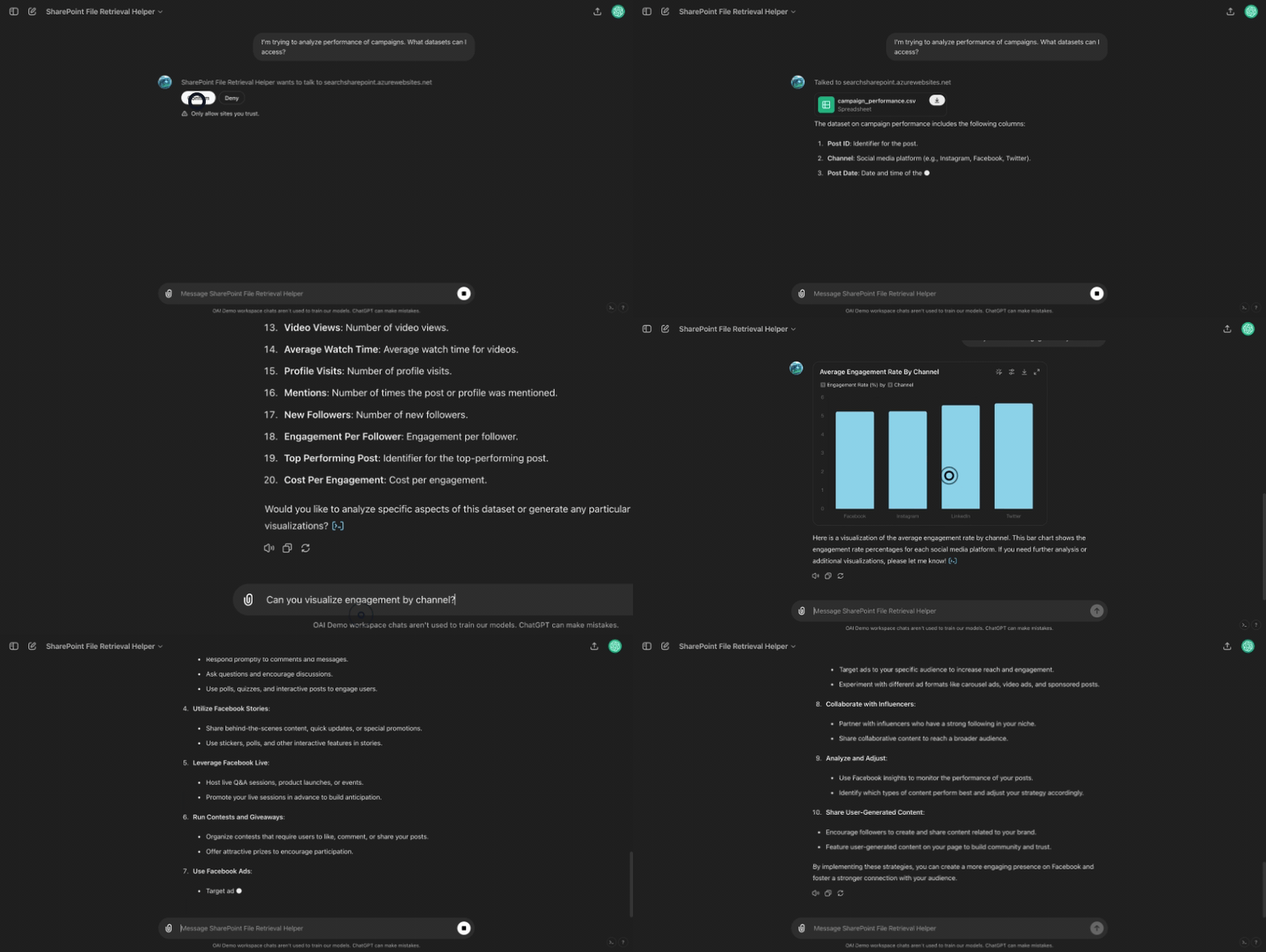
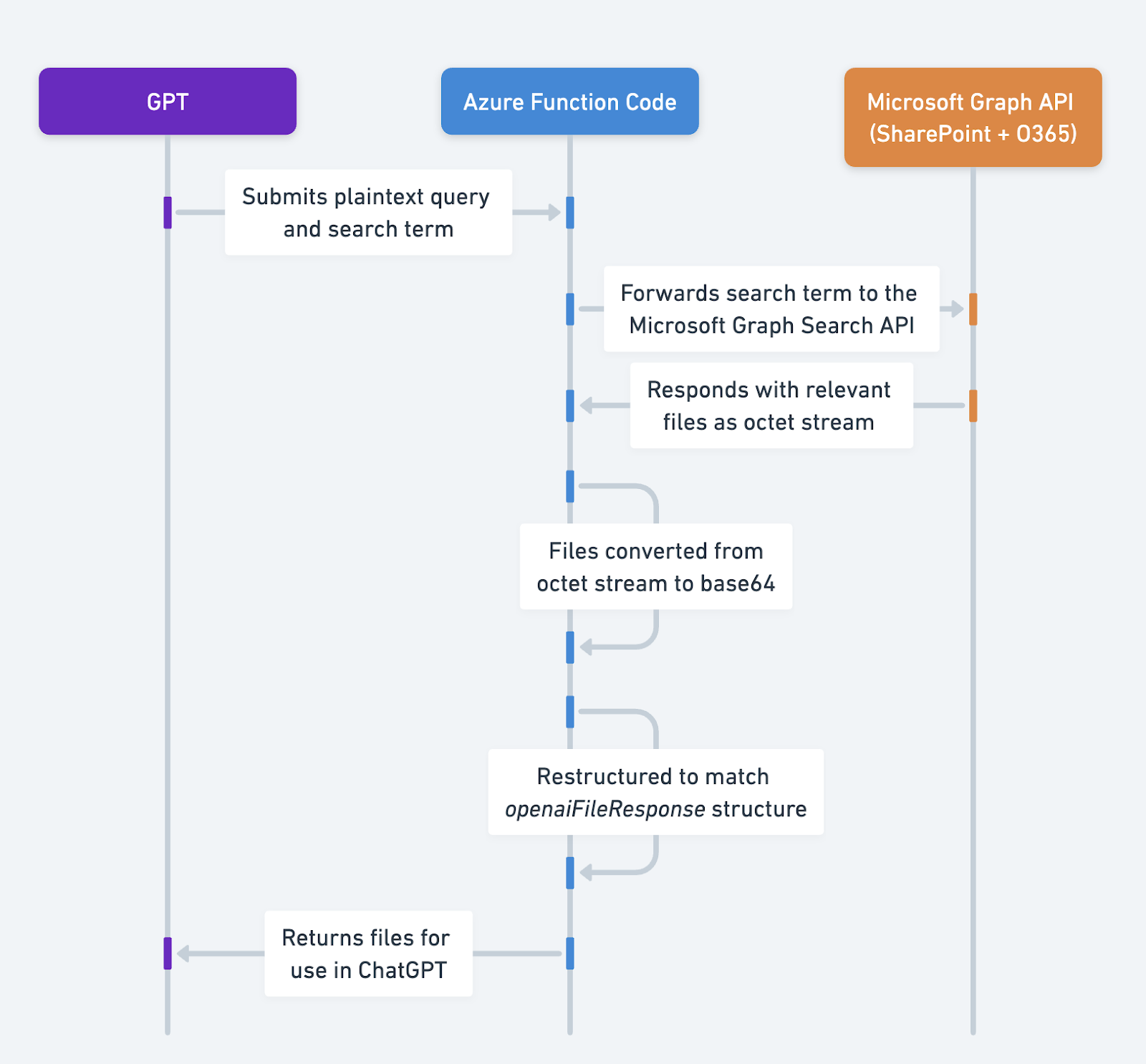
该解决方案使用一个基于Node.js的Azure函数,根据登录用户:
-
根据用户的初始问题,搜索用户有权访问的相关文件。
-
对于找到的每个文件,将其转换为base64字符串。
-
将数据格式化为ChatGPT预期的结构此处。
-
将那些文件返回给ChatGPT。GPT随后可以像您已将文件上传到对话中一样使用它们。
应用信息
应用密钥链接
在开始之前,请查看应用程序中的这些链接:
应用前提条件
在开始之前,请确保您已在应用程序环境中完成以下步骤:
- 访问Sharepoint环境
- Postman (以及了解API和OAuth)
中间件信息
如果您遵循搜索概念文件指南,Microsoft Graph Search API会返回符合条件文件的引用,而非文件内容本身。因此需要中间件处理,而非直接调用MSFT端点。
我们需要重新调整该API的响应结构,使其符合此处概述的openaiFileResponse预期结构。
额外步骤
设置Azure函数
- 按照Azure Function 食谱中的步骤设置Azure Function
添加函数代码
现在您已拥有经过身份验证的Azure Function,我们可以更新该函数以搜索SharePoint/O365
- 转到您的测试函数,并粘贴此文件中的代码。保存该函数。
此代码旨在提供方向性指导 - 虽然它应该可以直接使用,但其设计初衷是便于您根据需求进行定制(请参阅本文档末尾的示例)。
-
通过左侧设置下的配置选项卡设置以下环境变量。请注意,根据您的Azure界面,这些变量可能直接列在环境变量部分中。
-
TENANT_ID: 从上一节复制而来 -
CLIENT_ID: 从上一章节复制而来
-
-
前往开发者工具下的控制台选项卡
-
在控制台中安装以下软件包
-
npm install @microsoft/microsoft-graph-client -
npm install axios
-
-
-
完成此操作后,尝试再次从Postman调用该函数(POST请求),将以下内容放入请求体(使用你认为会生成响应的查询和搜索词)。
{ "searchTerm": "" } -
如果收到响应,您就可以开始使用自定义GPT进行设置了!有关设置详情,请参阅Azure Function页面的ChatGPT部分
更详细的逐步指南
以下将详细介绍此解决方案特有的设置步骤和操作指南。完整代码可在此此处查看。
代码详解
以下将逐步介绍该函数的不同部分。开始之前,请确保已安装所需软件包并设置好环境变量(参见安装步骤部分)。
实现身份验证
下面我们有几个辅助函数,将在函数中使用。
初始化 Microsoft Graph 客户端
创建一个函数来使用访问令牌初始化Graph客户端。这将用于在Office 365和SharePoint中进行搜索。
const { Client } = require('@microsoft/microsoft-graph-client');

function initGraphClient(accessToken) {
    return Client.init({
        authProvider: (done) => {
            done(null, accessToken);
        }
    });
}
获取代理令牌 (OBO)
此函数使用现有的持有者令牌从微软身份平台请求OBO令牌。这样可以通过传递凭证确保搜索仅返回登录用户有权访问的文件。
const axios = require('axios');
const qs = require('querystring');

async function getOboToken(userAccessToken) {
    const { TENANT_ID, CLIENT_ID, MICROSOFT_PROVIDER_AUTHENTICATION_SECRET } = process.env;
    const params = {
        client_id: CLIENT_ID,
        client_secret: MICROSOFT_PROVIDER_AUTHENTICATION_SECRET,
        grant_type: 'urn:ietf:params:oauth:grant-type:jwt-bearer',
        assertion: userAccessToken,
        requested_token_use: 'on_behalf_of',
        scope: 'https://graph.microsoft.com/.default'
    };

    const url = `https\://login.microsoftonline.com/${TENANT_ID}/oauth2/v2.0/token`;
    try {
        const response = await axios.post(url, qs.stringify(params), {
            headers: { 'Content-Type': 'application/x-www-form-urlencoded' }
        });
        return response.data.access\_token;
    } catch (error) {
        console.error('Error obtaining OBO token:', error.response?.data || error.message);
        throw error;
    }
}
从O365/SharePoint项目检索内容
该函数获取驱动器项目的内容,将其转换为base64字符串,并重新构造以匹配openaiFileResponse格式。
const getDriveItemContent = async (client, driveId, itemId, name) => {
   try
       const filePath = `/drives/${driveId}/items/${itemId}`;
       const downloadPath = filePath + `/content`
       // this is where we get the contents and convert to base64
       const fileStream = await client.api(downloadPath).getStream();
       let chunks = [];
           for await (let chunk of fileStream) {
               chunks.push(chunk);
           }
       const base64String = Buffer.concat(chunks).toString('base64');
       // this is where we get the other metadata to include in response
       const file = await client.api(filePath).get();
       const mime_type = file.file.mimeType;
       const name = file.name;
       return {"name":name, "mime_type":mime_type, "content":base64String}
   } catch (error) {
       console.error('Error fetching drive content:', error);
       throw new Error(`Failed to fetch content for ${name}: ${error.message}`);
   }
创建用于处理请求的Azure函数
现在我们有了所有这些辅助函数,Azure Function将通过验证用户身份、执行搜索并遍历搜索结果来协调流程,提取文本并将文本的相关部分检索给GPT。
处理HTTP请求: 该函数首先从HTTP请求中提取查询内容和searchTerm。它会检查Authorization头是否存在,并提取bearer令牌。
认证: 使用持有者令牌,通过上述定义的getOboToken从微软身份平台获取OBO令牌。
初始化Graph客户端: 使用OBO令牌,通过上面定义的initGraphClient初始化Microsoft Graph客户端。
文档搜索: 它会构建一个搜索查询并将其发送到Microsoft Graph API,以便根据searchTerm查找文档。
文档处理: 对于搜索返回的每个文档:
-
它使用getDriveItemContent获取文档内容。
-
它将文档转换为base64字符串,并重新构建以匹配
openaiFileResponse结构。
响应: 该函数通过HTTP响应将它们发送回去。
module.exports = async function (context, req) {
   // const query = req.query.query || (req.body && req.body.query);
   const searchTerm = req.query.searchTerm || (req.body && req.body.searchTerm);
   if (!req.headers.authorization) {
       context.res = {
           status: 400,
           body: 'Authorization header is missing'
       };
       return;
   }
   /// The below takes the token passed to the function, to use to get an OBO token.
   const bearerToken = req.headers.authorization.split(' ')[1];
   let accessToken;
   try {
       accessToken = await getOboToken(bearerToken);
   } catch (error) {
       context.res = {
           status: 500,
           body: `Failed to obtain OBO token: ${error.message}`
       };
       return;
   }
   // Initialize the Graph Client using the initGraphClient function defined above
   let client = initGraphClient(accessToken);
   // this is the search body to be used in the Microsft Graph Search API: https://learn.microsoft.com/en-us/graph/search-concept-files
   const requestBody = {
       requests: [
           {
               entityTypes: ['driveItem'],
               query: {
                   queryString: searchTerm
               },
               from: 0,
               // the below is set to summarize the top 10 search results from the Graph API, but can configure based on your documents.
               size: 10
           }
       ]
   };


   try {
       // This is where we are doing the search
       const list = await client.api('/search/query').post(requestBody);
       const processList = async () => {
           // This will go through and for each search response, grab the contents of the file and summarize with gpt-3.5-turbo
           const results = [];
           await Promise.all(list.value[0].hitsContainers.map(async (container) => {
               for (const hit of container.hits) {
                   if (hit.resource["@odata.type"] === "#microsoft.graph.driveItem") {
                       const { name, id } = hit.resource;
                       // The below is where the file lives
                       const driveId = hit.resource.parentReference.driveId;
                       // we use the helper function we defined above to get the contents, convert to base64, and restructure it
                       const contents = await getDriveItemContent(client, driveId, id, name);
                       results.push(contents)
               }
           }));
           return results;
       };
       let results;
       if (list.value[0].hitsContainers[0].total == 0) {
           // Return no results found to the API if the Microsoft Graph API returns no results
           results = 'No results found';
       } else {
           // If the Microsoft Graph API does return results, then run processList to iterate through.
           results = await processList();
           // this is where we structure the response so ChatGPT knows they are files
           results = {'openaiFileResponse': results}
       }
       context.res = {
           status: 200,
           body: results
       };
   } catch (error) {
       context.res = {
           status: 500,
           body: `Error performing search or processing results: ${error.message}`,
       };
   }
};
自定义设置
以下是一些可以自定义的潜在领域。
-
你可以自定义GPT提示词,以便在未找到结果时重新搜索一定次数。
-
您可以通过自定义搜索查询来调整代码,使其仅搜索特定的SharePoint站点或O365驱动器。这将有助于集中搜索范围并提高检索效率。当前设置的函数会搜索登录用户有权访问的所有文件。
-
你可以更新代码,使其仅返回特定类型的文件。例如,仅返回结构化数据/CSVs。
-
您可以在调用Microsoft Graph时自定义搜索的文件数量。请注意,根据此处文档说明,最多只能设置10个文件。
注意事项
请注意,所有与Actions相同的限制在此处也适用,包括返回不超过10万个字符以及45秒超时。
ChatGPT 步骤
自定义GPT指令
创建自定义GPT后,请将以下文本复制到指令面板中。有问题吗?查看入门示例详细了解此步骤的操作方法。
You are a Q&A helper that helps answer users questions. You have access to a documents repository through your API action. When a user asks a question, you pass in the "searchTerm" a single keyword or term you think you should use for the search.

****

Scenario 1: There are answers

If your action returns results, then you take the results from the action and try to answer the users question.

****

Scenario 2: No results found

If the response you get from the action is "No results found", stop there and let the user know there were no results and that you are going to try a different search term, and explain why. You must always let the user know before conducting another search.

Example:

****

I found no results for "DEI". I am now going to try [insert term] because [insert explanation]

****

Then, try a different searchTerm that is similar to the one you tried before, with a single word.

Try this three times. After the third time, then let the user know you did not find any relevant documents to answer the question, and to check SharePoint.
Be sure to be explicit about what you are searching for at each step.

****

In either scenario, try to answer the user's question. If you cannot answer the user's question based on the knowledge you find, let the user know and ask them to go check the HR Docs in SharePoint.
OpenAPI 规范
创建自定义GPT后,在操作面板中复制以下文本。有问题吗?查看入门示例了解此步骤的详细操作方式。
这期望一个符合我们文档此处中文件检索结构的响应,并传入一个searchTerm参数来指导搜索。
请确保根据上方截图复制的链接切换函数应用名称、函数名称和代码
openapi: 3.1.0
info:
  title: SharePoint Search API
  description: API for searching SharePoint documents.
  version: 1.0.0
servers:
  - url: https://{your_function_app_name}.azurewebsites.net/api
    description: SharePoint Search API server
paths:
  /{your_function_name}?code={enter your specific endpoint id here}:
    post:
      operationId: searchSharePoint
      summary: Searches SharePoint for documents matching a query and term.
      requestBody:
        required: true
        content:
          application/json:
            schema:
              type: object
              properties:
                searchTerm:
                  type: string
                  description: A specific term to search for within the documents.
      responses:
        '200':
          description: A CSV file of query results encoded in base64.
          content:
            application/json:
              schema:
                type: object
                properties:
                  openaiFileResponseData:
                    type: array
                    items:
                      type: object
                      properties:
                        name:
                          type: string
                          description: The name of the file.
                        mime_type:
                          type: string
                          description: The MIME type of the file.
                        content:
                          type: string
                          format: byte
                          description: The base64 encoded contents of the file.
        '400':
          description: Bad request when the SQL query parameter is missing.
        '413':
          description: Payload too large if the response exceeds the size limit.
        '500':
          description: Server error when there are issues executing the query or encoding the results.
认证说明
以下是设置与这个第三方应用程序进行身份验证的说明。有问题吗?查看入门示例以更详细地了解此步骤的工作原理。
有关身份验证的更详细说明,请参阅上文及Azure Function 使用手册。
常见问题与故障排除
-
为什么你在代码中使用的是Microsoft Graph API而不是SharePoint API?
- SharePoint API 是旧版 - 根据微软文档此处所述,"对于SharePoint Online,通过Microsoft Graph REST API来驱动针对SharePoint的创新使用。" Graph API为我们提供了更大的灵活性,而SharePoint API仍然会遇到为什么需要这样做而不是直接与Microsoft Graph API交互?部分中列出的相同文件问题。
-
支持哪些类型的文件?
它遵循与文档此处相同的文件上传指南。
-
为什么我需要请求一个OBO令牌?
-
当你尝试使用相同的令牌同时向Graph API和Azure Function进行身份验证时,会出现"无效受众"令牌错误。这是因为该令牌的受众范围只能是user_impersonation。
-
为解决此问题,该函数使用On Behalf Of flow在应用内请求一个具有Files.Read.All权限范围的新令牌。这将继承登录用户的权限,意味着该函数仅会搜索登录用户有权访问的文件。
-
我们特意为每个请求申请一个新的"代表"令牌,因为Azure Function Apps设计为无状态的。您可以考虑将其与Azure Key Vault集成来存储密钥并通过编程方式获取。
-
是否有您希望我们优先考虑的集成方案?我们的集成是否存在错误?请在GitHub上提交PR或问题,我们会尽快查看。