本笔记本展示了如何利用全新的Assistants API(GPT-4)和DALL·E-3技术来制作信息丰富且视觉精美的幻灯片。
幻灯片制作是许多工作的关键环节,但往往费时费力。此外,从数据中提取洞见并在幻灯片上清晰表达也颇具挑战性。
本教程将演示如何通过Assistants API实现端到端的幻灯片自动生成,无需手动操作Microsoft PowerPoint或Google Slides,从而为您节省宝贵的时间和精力!
本文已归档,可能包含过时信息。文中所述方法、模型或技术为撰写时的最新内容,但可能已不再代表最佳实践或最新发展。
0. 设置
from IPython.display import display, Image
from openai import OpenAI
import os
import pandas as pd
import json
import io
from PIL import Image
import requests

client = OpenAI(api_key=os.environ.get("OPENAI_API_KEY", "<your OpenAI API key if not set as env var>"))

#Lets import some helper functions for assistants from https://cookbook.openai.com/examples/assistants_api_overview_python
def show_json(obj):
    display(json.loads(obj.model_dump_json()))

def submit_message(assistant_id, thread, user_message,file_ids=None):
    params = {
        'thread_id': thread.id,
        'role': 'user',
        'content': user_message,
    }
    if file_ids:
        params['file_ids']=file_ids

    client.beta.threads.messages.create(
        **params
)
    return client.beta.threads.runs.create(
    thread_id=thread.id,
    assistant_id=assistant_id,
)

def get_response(thread):
    return client.beta.threads.messages.list(thread_id=thread.id)
1. 创建内容
在本方案中,我们将为虚构的NotReal公司季度财务回顾创建一个简短的演示报告。我们将重点展示一些影响公司盈利能力的关键趋势。
假设我们手头有一些财务数据。让我们加载数据并查看...
financial_data_path = 'data/NotRealCorp_financial_data.json'
financial_data = pd.read_json(financial_data_path)
financial_data.head(5)
| 年份 | 季度 | 分销渠道 | 收入(百万美元) | 成本(百万美元) | 客户数量 | 时间 | |
|---|---|---|---|---|---|---|---|
| 0 | 2021 | 第一季度 | 线上销售 | 1.50 | 1.301953 | 150 | 2021年第一季度 |
| 1 | 2021 | 第一季度 | 直销 | 1.50 | 1.380809 | 151 | 2021年第一季度 |
| 2 | 2021 | 第一季度 | 零售合作伙伴 | 1.50 | 1.348246 | 152 | 2021年第一季度 |
| 3 | 2021 | Q2 | 线上销售 | 1.52 | 1.308608 | 152 | 2021年第二季度 |
| 4 | 2021 | Q2 | 直销 | 1.52 | 1.413305 | 153 | 2021 Q2 |
如您所见,这些数据包含了不同分销渠道的季度收入、成本和客户数据。让我们创建一个能充当个人分析师的Assistant,为我们的PowerPoint制作精美的可视化图表!
首先,我们需要上传文件以便我们的助手能够访问它。
file = client.files.create(
  file=open('data/NotRealCorp_financial_data.json',"rb"),
  purpose='assistants',
)
现在,我们已经准备好创建我们的助手了。我们可以指示助手扮演数据科学家的角色,接收我们提出的任何查询,并运行必要的代码来输出正确的数据可视化结果。这里的instructions参数类似于ChatCompletions端点中的系统指令,可以帮助引导助手。我们还可以启用代码解释器工具,这样我们的助手就能够编写代码。最后,我们可以指定要使用的任何文件,在本例中就是我们上面创建的financial_data文件。
assistant = client.beta.assistants.create(
  instructions="You are a data scientist assistant. When given data and a query, write the proper code and create the proper visualization",
  model="gpt-4-1106-preview",
  tools=[{"type": "code_interpreter"}],
  file_ids=[file.id]
)
现在让我们创建一个线程,作为第一个请求,要求Assistant计算季度利润,然后按分销渠道随时间绘制利润图。Assistant会自动计算每个季度的利润,还会创建一个结合季度和年份的新列,无需我们直接提出要求。我们还可以指定每条线的颜色。
thread = client.beta.threads.create(
  messages=[
    {
      "role": "user",
      "content": "Calculate profit (revenue minus cost) by quarter and year, and visualize as a line plot across the distribution channels, where the colors of the lines are green, light red, and light blue",
      "file_ids": [file.id]
    }
  ]
)
现在我们可以执行线程的运行了
run = client.beta.threads.runs.create(
    thread_id=thread.id,
    assistant_id=assistant.id,
)
我们现在可以启动一个循环来检查图像是否已生成。注意:此过程可能需要几分钟时间
messages = client.beta.threads.messages.list(thread_id=thread.id)
import time

while True:
    messages = client.beta.threads.messages.list(thread_id=thread.id)
    try:
        #See if image has been created
        messages.data[0].content[0].image_file
        #Sleep to make sure run has completed
        time.sleep(5)
        print('Plot created!')
        break
    except:
        time.sleep(10)
        print('Assistant still working...')
Assistant still working...
Assistant still working...
Assistant still working...
Assistant still working...
Assistant still working...
Assistant still working...
Assistant still working...
Assistant still working...
Assistant still working...
Assistant still working...
Assistant still working...
Assistant still working...
Assistant still working...
Assistant still working...
Assistant still working...
Assistant still working...
Assistant still working...
Plot created!
让我们看看助手添加的消息。
messages = client.beta.threads.messages.list(thread_id=thread.id)
[message.content[0] for message in messages.data]
[MessageContentImageFile(image_file=ImageFile(file_id='file-0rKABLygI02MgwwhpgWdRFY1'), type='image_file'),
 MessageContentText(text=Text(annotations=[], value="The profit has been calculated for each distribution channel by quarter and year. Next, I'll create a line plot to visualize these profits. As specified, I will use green for the 'Online Sales', light red for 'Direct Sales', and light blue for 'Retail Partners' channels. Let's create the plot."), type='text'),
 MessageContentText(text=Text(annotations=[], value="The JSON data has been successfully restructured into a tabular dataframe format. It includes the year, quarter, distribution channel, revenue, costs, customer count, and a combined 'Time' representation of 'Year Quarter'. Now, we have the necessary information to calculate the profit (revenue minus cost) by quarter and year.\n\nTo visualize the profit across the different distribution channels with a line plot, we will proceed with the following steps:\n\n1. Calculate the profit for each row in the dataframe.\n2. Group the data by 'Time' (which is a combination of Year and Quarter) and 'Distribution channel'.\n3. Aggregate the profit for each group.\n4. Plot the aggregated profits as a line plot with the distribution channels represented in different colors as requested.\n\nLet's calculate the profit for each row and then continue with the visualization."), type='text'),
 MessageContentText(text=Text(annotations=[], value='The structure of the JSON data shows that it is a dictionary with "Year", "Quarter", "Distribution channel", and potentially other keys that map to dictionaries containing the data. The keys of the inner dictionaries are indices, indicating that the data is tabular but has been converted into a JSON object.\n\nTo properly convert this data into a DataFrame, I will restructure the JSON data into a more typical list of dictionaries, where each dictionary represents a row in our target DataFrame. Subsequent to this restructuring, I can then load the data into a Pandas DataFrame. Let\'s restructure and load the data.'), type='text'),
 MessageContentText(text=Text(annotations=[], value="The JSON data has been incorrectly loaded into a single-row DataFrame with numerous columns representing each data point. This implies the JSON structure is not as straightforward as expected, and a direct conversion to a flat table is not possible without further processing.\n\nTo better understand the JSON structure and figure out how to properly normalize it into a table format, I will print out the raw JSON data structure. We will analyze its format and then determine the correct approach to extract the profit by quarter and year, as well as the distribution channel information. Let's take a look at the JSON structure."), type='text'),
 MessageContentText(text=Text(annotations=[], value="It seems that the file content was successfully parsed as JSON, and thus, there was no exception raised. The variable `error_message` is not defined because the `except` block was not executed.\n\nI'll proceed with displaying the data that was parsed from JSON."), type='text'),
 MessageContentText(text=Text(annotations=[], value="It appears that the content of the dataframe has been incorrectly parsed, resulting in an empty dataframe with a very long column name that seems to contain JSON data rather than typical CSV columns and rows.\n\nTo address this issue, I will take a different approach to reading the file. I will attempt to parse the content as JSON. If this is not successful, I'll adjust the loading strategy accordingly. Let's try to read the contents as JSON data first."), type='text'),
 MessageContentText(text=Text(annotations=[], value="Before we can calculate profits and visualize the data as requested, I need to first examine the contents of the file that you have uploaded. Let's go ahead and read the file to understand its structure and the kind of data it contains. Once I have a clearer picture of the dataset, we can proceed with the profit calculations. I'll begin by loading the file into a dataframe and displaying the first few entries to see the data schema."), type='text'),
 MessageContentText(text=Text(annotations=[], value='Calculate profit (revenue minus cost) by quarter and year, and visualize as a line plot across the distribution channels, where the colors of the lines are green, light red, and light blue'), type='text')]
我们可以看到,助手的最后一条消息(最新消息显示在最前面)包含了我们要找的图片文件。这里值得注意的是,由于第一次解析JSON数据未成功,助手能够多次尝试解析,这展示了其适应能力。
# Quick helper function to convert our output file to a png
def convert_file_to_png(file_id, write_path):
    data = client.files.content(file_id)
    data_bytes = data.read()
    with open(write_path, "wb") as file:
        file.write(data_bytes)
plot_file_id = messages.data[0].content[0].image_file.file_id
image_path = "../images/NotRealCorp_chart.png"
convert_file_to_png(plot_file_id,image_path)

#Upload
plot_file = client.files.create(
  file=open(image_path, "rb"),
  purpose='assistants'
)
让我们加载这个图表!
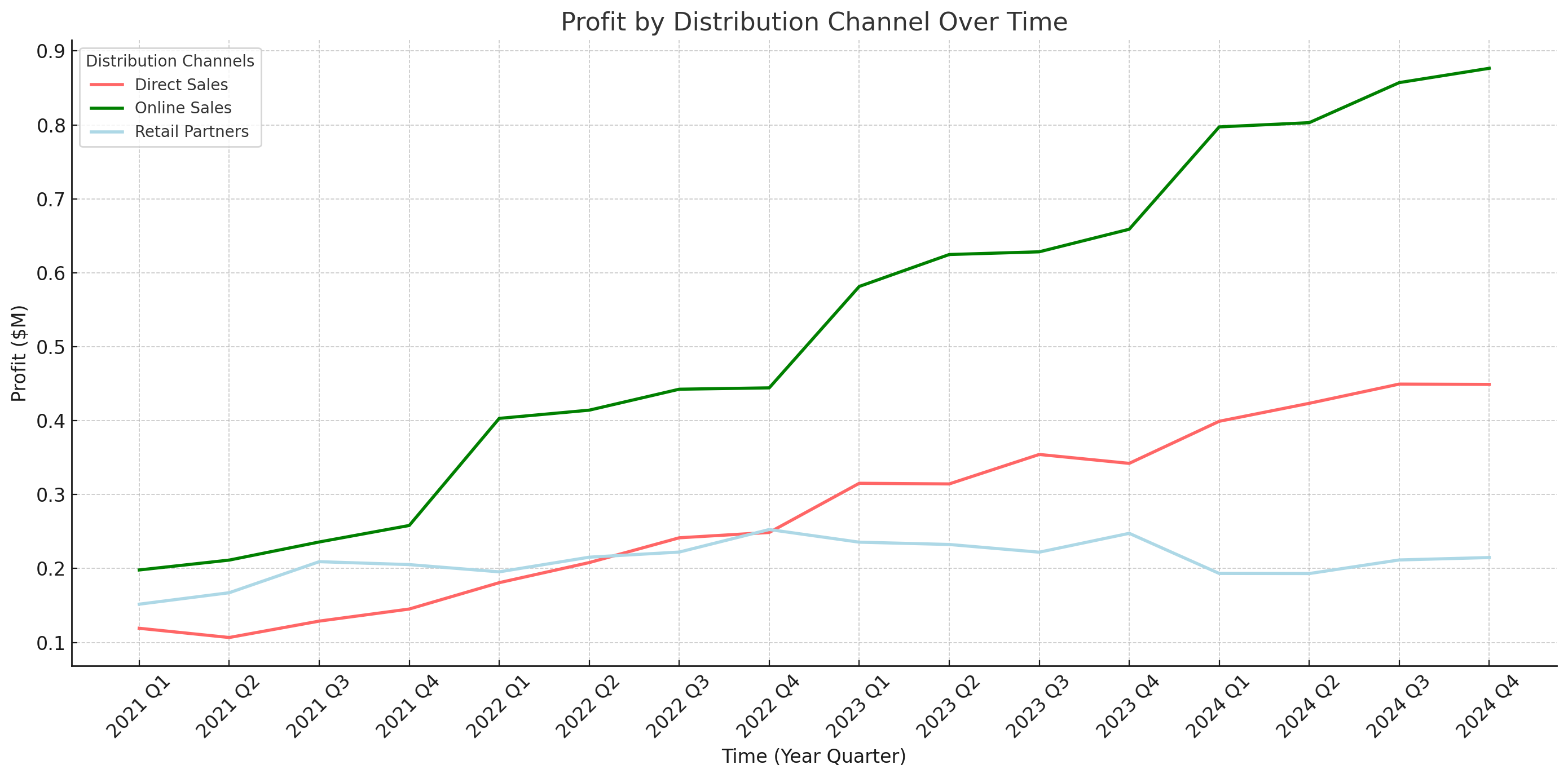
很好!仅用一句话,我们就让助手利用代码解释器计算了盈利能力,并绘制了各分销渠道的三条线图。
现在我们有了适合幻灯片的精美可视化图表,但还需要一些分析见解来配合它。
2. 生成洞察
要从我们的图像中获取见解,我们只需在对话线程中添加一条新消息。我们的助手会利用消息历史记录,从提供的视觉内容中给出一些简洁的要点。
submit_message(assistant.id,thread,"Give me two medium length sentences (~20-30 words per sentence) of the \
      most important insights from the plot you just created.\
             These will be used for a slide deck, and they should be about the\
                     'so what' behind the data."
)
Run(id='run_NWoygMcBfHUr58fCE4Cn6rxN', assistant_id='asst_3T362kLlTyAq0FUnkvjjQczO', cancelled_at=None, completed_at=None, created_at=1701827074, expires_at=1701827674, failed_at=None, file_ids=['file-piTokyHGllwGITzIpoG8dok3'], instructions='You are a data scientist assistant. When given data and a query, write the proper code and create the proper visualization', last_error=None, metadata={}, model='gpt-4-1106-preview', object='thread.run', required_action=None, started_at=None, status='queued', thread_id='thread_73TgtFoJMlEJvb13ngjTnAo3', tools=[ToolAssistantToolsCode(type='code_interpreter')])现在,运行完成后,我们可以查看最新的消息
# Hard coded wait for a response, as the assistant may iterate on the bullets.
time.sleep(10)
response = get_response(thread)
bullet_points = response.data[0].content[0].text.value
print(bullet_points)
The plot reveals a consistent upward trend in profits for all distribution channels, indicating successful business growth over time. Particularly, 'Online Sales' shows a notable increase, underscoring the importance of digital presence in revenue generation.
太棒了!我们的助手能够识别出在线销售利润的显著增长,并推断出这表明强大的数字存在的重要性。现在让我们为幻灯片想一个引人注目的标题。
submit_message(assistant.id,thread,"Given the plot and bullet points you created,\
 come up with a very brief title for a slide. It should reflect just the main insights you came up with."
)
Run(id='run_q6E85J31jCw3QkHpjJKl969P', assistant_id='asst_3T362kLlTyAq0FUnkvjjQczO', cancelled_at=None, completed_at=None, created_at=1701827084, expires_at=1701827684, failed_at=None, file_ids=['file-piTokyHGllwGITzIpoG8dok3'], instructions='You are a data scientist assistant. When given data and a query, write the proper code and create the proper visualization', last_error=None, metadata={}, model='gpt-4-1106-preview', object='thread.run', required_action=None, started_at=None, status='queued', thread_id='thread_73TgtFoJMlEJvb13ngjTnAo3', tools=[ToolAssistantToolsCode(type='code_interpreter')])标题是:
#Wait as assistant may take a few steps
time.sleep(10)
response = get_response(thread)
title = response.data[0].content[0].text.value
print(title)
"Ascending Profits & Digital Dominance"
3. DALL·E-3 标题图片
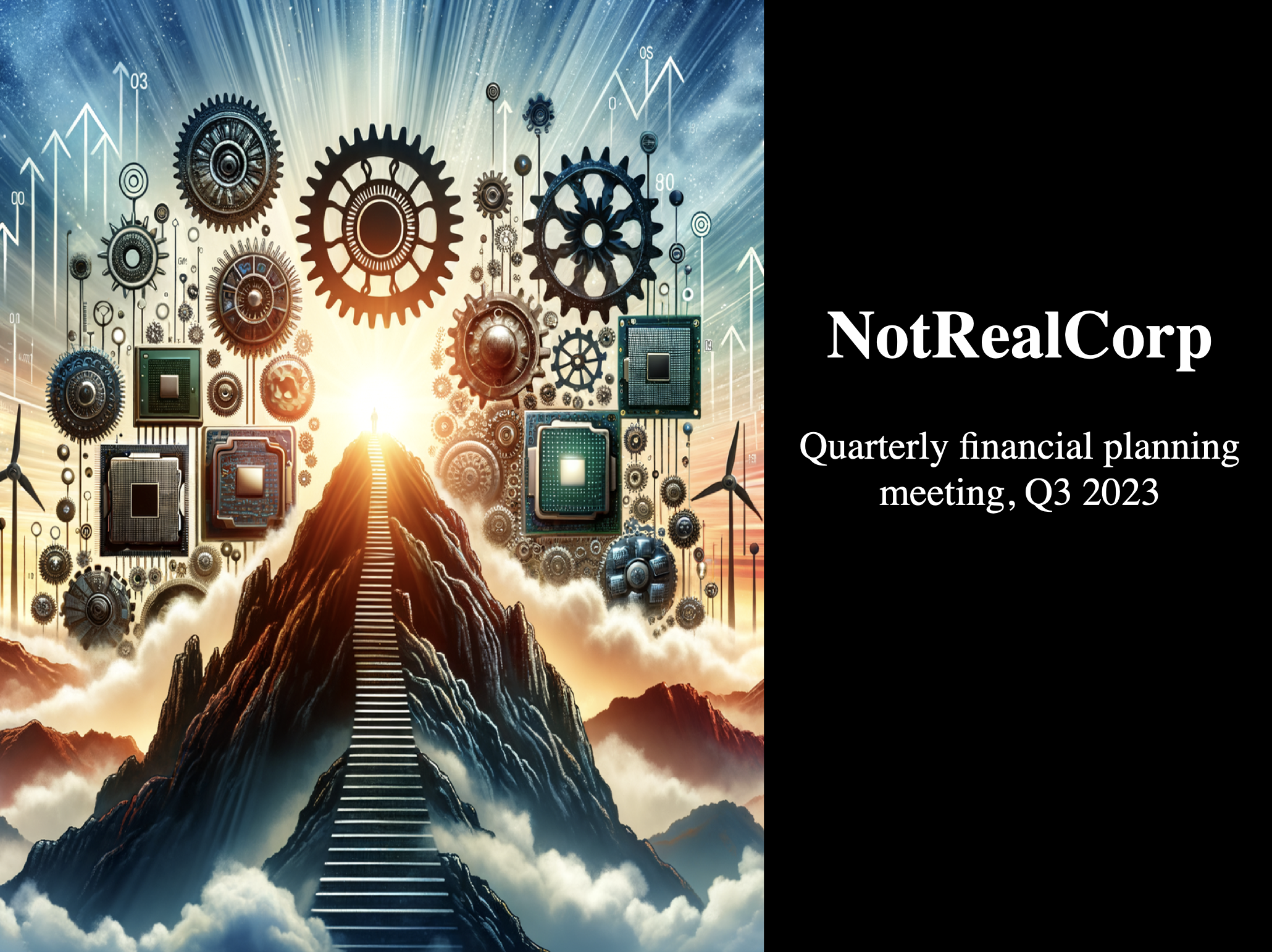
很好,现在我们有了标题、情节和两个要点。我们差不多准备好将所有内容放到幻灯片上了,但作为最后一步,让我们用DALL·E-3生成一张图片作为演示文稿的标题幻灯片。
注意: DALL·E-3目前尚未在assistants API中提供,但即将推出!
我们将输入公司(NotRealCorp)的简要描述,剩下的就交给DALL·E-3来完成!
company_summary = "NotReal Corp is a prominent hardware company that manufactures and sells processors, graphics cards and other essential computer hardware."
response = client.images.generate(
  model='dall-e-3',
  prompt=f"given this company summary {company_summary}, create an inspirational \
    photo showing the growth and path forward. This will be used at a quarterly\
       financial planning meeting",
       size="1024x1024",
       quality="hd",
       n=1
)
image_url = response.data[0].url
太棒了,现在我们可以将这张图片添加到我们的线程中。首先,我们可以将图片保存到本地,然后使用File上传端点将其上传到assistants API。让我们也看看我们的图片
dalle_img_path = '../images/dalle_image.png'
img = requests.get(image_url)

#Save locally
with open(dalle_img_path,'wb') as file:
  file.write(img.content)

#Upload
dalle_file = client.files.create(
  file=open(dalle_img_path, "rb"),
  purpose='assistants'
)

4. 创建幻灯片
我们现在已经拥有创建幻灯片所需的全部内容。虽然我们可以简单地添加一条消息来请求生成幻灯片,但更好的做法是使用python-pptx库为助手提供一个幻灯片模板。这将确保我们获得符合预期风格的演示文稿。有关创建模板的注意事项,请参阅笔记本末尾的Extensions部分。
title_template = """
from pptx import Presentation
from pptx.util import Inches, Pt
from pptx.enum.text import PP_PARAGRAPH_ALIGNMENT
from pptx.dml.color import RGBColor

# Create a new presentation object
prs = Presentation()

# Add a blank slide layout
blank_slide_layout = prs.slide_layouts[6]
slide = prs.slides.add_slide(blank_slide_layout)

# Set the background color of the slide to black
background = slide.background
fill = background.fill
fill.solid()
fill.fore_color.rgb = RGBColor(0, 0, 0)

# Add image to the left side of the slide with a margin at the top and bottom
left = Inches(0)
top = Inches(0)
height = prs.slide_height
width = prs.slide_width * 3/5
pic = slide.shapes.add_picture(image_path, left, top, width=width, height=height)

# Add title text box positioned higher
left = prs.slide_width * 3/5
top = Inches(2)
width = prs.slide_width * 2/5
height = Inches(1)
title_box = slide.shapes.add_textbox(left, top, width, height)
title_frame = title_box.text_frame
title_p = title_frame.add_paragraph()
title_p.text = title_text
title_p.font.bold = True
title_p.font.size = Pt(38)
title_p.font.color.rgb = RGBColor(255, 255, 255)
title_p.alignment = PP_PARAGRAPH_ALIGNMENT.CENTER

# Add subtitle text box
left = prs.slide_width * 3/5
top = Inches(3)
width = prs.slide_width * 2/5
height = Inches(1)
subtitle_box = slide.shapes.add_textbox(left, top, width, height)
subtitle_frame = subtitle_box.text_frame
subtitle_p = subtitle_frame.add_paragraph()
subtitle_p.text = subtitle_text
subtitle_p.font.size = Pt(22)
subtitle_p.font.color.rgb = RGBColor(255, 255, 255)
subtitle_p.alignment = PP_PARAGRAPH_ALIGNMENT.CENTER
"""

data_vis_template = """
from pptx import Presentation
from pptx.util import Inches, Pt
from pptx.enum.text import PP_PARAGRAPH_ALIGNMENT
from pptx.dml.color import RGBColor

# Create a new presentation object
prs = Presentation()

# Add a blank slide layout
blank_slide_layout = prs.slide_layouts[6]
slide = prs.slides.add_slide(blank_slide_layout)

# Set the background color of the slide to black
background = slide.background
fill = background.fill
fill.solid()
fill.fore_color.rgb = RGBColor(0, 0, 0)

# Define placeholders
image_path = data_vis_img
title_text = "Maximizing Profits: The Dominance of Online Sales & Direct Sales Optimization"
bullet_points = "• Online Sales consistently lead in profitability across quarters, indicating a strong digital market presence.\n• Direct Sales show fluctuations, suggesting variable performance and the need for targeted improvements in that channel."

# Add image placeholder on the left side of the slide
left = Inches(0.2)
top = Inches(1.8)
height = prs.slide_height - Inches(3)
width = prs.slide_width * 3/5
pic = slide.shapes.add_picture(image_path, left, top, width=width, height=height)

# Add title text spanning the whole width
left = Inches(0)
top = Inches(0)
width = prs.slide_width
height = Inches(1)
title_box = slide.shapes.add_textbox(left, top, width, height)
title_frame = title_box.text_frame
title_frame.margin_top = Inches(0.1)
title_p = title_frame.add_paragraph()
title_p.text = title_text
title_p.font.bold = True
title_p.font.size = Pt(28)
title_p.font.color.rgb = RGBColor(255, 255, 255)
title_p.alignment = PP_PARAGRAPH_ALIGNMENT.CENTER

# Add hardcoded "Key Insights" text and bullet points
left = prs.slide_width * 2/3
top = Inches(1.5)
width = prs.slide_width * 1/3
height = Inches(4.5)
insights_box = slide.shapes.add_textbox(left, top, width, height)
insights_frame = insights_box.text_frame
insights_p = insights_frame.add_paragraph()
insights_p.text = "Key Insights:"
insights_p.font.bold = True
insights_p.font.size = Pt(24)
insights_p.font.color.rgb = RGBColor(0, 128, 100)
insights_p.alignment = PP_PARAGRAPH_ALIGNMENT.LEFT
insights_frame.add_paragraph()


bullet_p = insights_frame.add_paragraph()
bullet_p.text = bullet_points
bullet_p.font.size = Pt(12)
bullet_p.font.color.rgb = RGBColor(255, 255, 255)
bullet_p.line_spacing = 1.5
"""
让我们为幻灯片设置几个快速变量。我们希望公司名称NotRealCorp显示在标题幻灯片上,演示文稿的标题应为"2023年第三季度财务规划会议"。
title_text = "NotRealCorp"
subtitle_text = "Quarterly financial planning meeting, Q3 2023"
至于数据幻灯片,我们有:
这里我们有一个创建标题幻灯片的模板。下方的模板是通过将理想的标题幻灯片图片上传至GPT-V,并请求生成创建该模板的python-pptx代码而得到的。模板的输入参数包括image_path(图片路径)、title_text(标题文本)和subtitle_text(副标题文本)。
submit_message(assistant.id,thread,f"Use the included code template to create a PPTX slide that follows the template format, but uses the image, company name/title, and document name/subtitle included:\
{title_template}. IMPORTANT: Use the image file included in this message as the image_path image in this first slide, and use the Company Name {title_text} as the title_text variable, and \
  use the subtitle_text {subtitle_text} a the subtitle_text variable. \
    NEST, create a SECOND slide using the following code template: {data_vis_template} to create a PPTX slide that follows the template format, but uses the company name/title, and document name/subtitle included:\
{data_vis_template}. IMPORTANT: Use the line plot image, that is the second attached image in this message, that you created earlier in the thread as the data_vis_img image, and use the data visualization title that you created earlier for the variable title_text, and\
  the bullet points of insights you created earlier for the bullet_points variable. Output these TWO SLIDES as a .pptx file. Make sure the output is two slides, with each slide matching the respective template given in this message.",
              file_ids=[dalle_file.id, plot_file.id]
)
Run(id='run_taLrnOnlDhoywgQFFBOLPlg0', assistant_id='asst_3T362kLlTyAq0FUnkvjjQczO', cancelled_at=None, completed_at=None, created_at=1701827118, expires_at=1701827718, failed_at=None, file_ids=['file-piTokyHGllwGITzIpoG8dok3'], instructions='You are a data scientist assistant. When given data and a query, write the proper code and create the proper visualization', last_error=None, metadata={}, model='gpt-4-1106-preview', object='thread.run', required_action=None, started_at=None, status='queued', thread_id='thread_73TgtFoJMlEJvb13ngjTnAo3', tools=[ToolAssistantToolsCode(type='code_interpreter')])#May take 1-3 mins
while True:
try:
response = get_response(thread)
pptx_id = response.data[0].content[0].text.annotations[0].file_path.file_id
print("Successfully retrieved pptx_id:", pptx_id)
break
except Exception as e:
print("Assistant still working on PPTX...")
time.sleep(10)
Assistant still working on PPTX...
Assistant still working on PPTX...
Assistant still working on PPTX...
Assistant still working on PPTX...
Assistant still working on PPTX...
Assistant still working on PPTX...
Assistant still working on PPTX...
Assistant still working on PPTX...
Assistant still working on PPTX...
Assistant still working on PPTX...
Successfully retrieved pptx_id: file-oa0i63qPH4IaJXYj90aA6L4Q
pptx_id = response.data[0].content[0].text.annotations[0].file_path.file_id
ppt_file= client.files.content(pptx_id)
file_obj = io.BytesIO(ppt_file.read())
with open("data/created_slides.pptx", "wb") as f:
    f.write(file_obj.getbuffer())
现在,我们已经将所有创建的内容保存为一个PPTX文件!
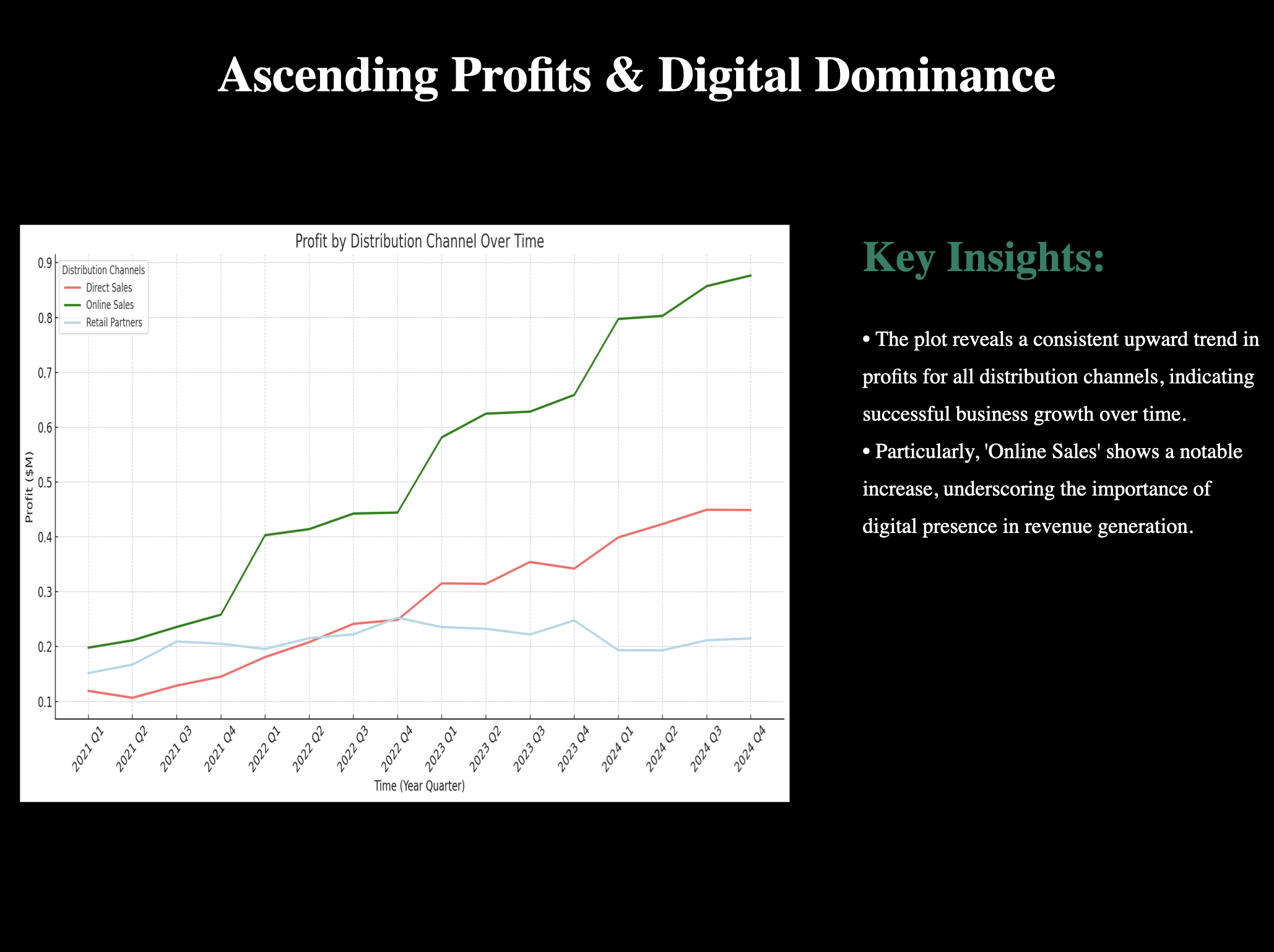
让我们看看仅使用assistants API和DALL·E-3创建的.pptx文件截图。目前Assistants API中还没有seed参数,因此由于LLMs的非确定性,DALL·E-3生成的图像和文字与你运行此笔记本时看到的内容会略有不同,但输出方向应该是相同的。
标题幻灯片:
以及数据幻灯片:
5. 结论
哇!虽然这些幻灯片可能需要一些格式调整,但我们使用Assistants API、GPT-4和DALL·E-3制作了很棒的内容。我们能够获取包含财务数据的.csv文件,并使用我们的智能体按季度计算各分销渠道的利润、绘制结果图表、从可视化中识别洞察和关键要点,并创建一个总结性标题。此外,仅凭对我们公司NotRealCorp的描述,我们就使用DALL·E-3制作了一个很棒的标题图片。
虽然我们距离完全自动化这个过程(无需人工参与)还有一段距离,但希望这个笔记本能让幻灯片制作过程对你来说更容易一些。更重要的是,这个笔记本可以让你一窥assistants API的潜力!我们很期待看到你构建的内容。
6. 扩展功能
- 当DALL·E-3被整合到Assistants API中时,我们将能够在对话线程内请求生成标题图像。
- GPT-4-Vision 尚未在 Assistants API 中支持,但本可用于从折线图图像中获取洞察。
- GPT-4-Vision被用于生成本方案中包含的
python-pptx模板,因此一个潜在的扩展项目可能是展示将图像转换为幻灯片模板的最佳实践。