 试用 Jupyter Widgets
Jupyter widgets 布局#
本笔记本展示了如何布局Jupyter交互式小部件,以构建丰富且响应式的基于小部件的应用程序。
您可以直接跳转到这些部分:
layout 属性#
Jupyter 交互式小部件有一个 layout 属性,暴露了多个影响小部件布局的 CSS 属性。
暴露的CSS属性#
尺寸#
高度宽度max_heightmax_widthmin_heightmin_width
显示#
可见性展示overflow溢出
盒模型#
边框margin(页边距)内边距
定位#
顶部左底部右侧
弹性盒模型#
顺序flex_flowalign_items弹性align_selfalign_contentjustify_content
网格布局#
grid_auto_columnsgrid_auto_flowgrid_auto_rows网格间隙grid_templategrid_rowgrid_column
简写CSS属性#
您可能已经注意到,某些CSS属性如margin-[top/right/bottom/left]似乎缺失了。同样的情况也适用于padding-[top/right/bottom/left]等等。
实际上,你可以通过单独使用 margin 属性,原子性地指定 [top/right/bottom/left] 边距,通过传递字符串 '100px 150px 100px 80px' 来分别为上、右、下和左边距设置 100、150、100 和 80 像素。
类似地,flex 属性可以包含 flex-grow、flex-shrink 和 flex-basis 的值。border 属性是 border-width、border-style (必需) 和 border-color 的简写属性。
简单示例#
以下示例展示了如何调整一个Button的大小,使其视图的高度为80px,宽度为可用空间的50%:
from ipywidgets import Button, Layout

b = Button(description='(50% width, 80px height) button',
           layout=Layout(width='50%', height='80px'))
b
layout 属性可以在多个小部件之间共享并直接分配。
Button(description='Another button with the same layout', layout=b.layout)
描述#
您可能已经注意到,长描述被截断了。这是因为描述长度默认是固定的。
from ipywidgets import IntSlider

IntSlider(description='A too long description')
你可以调整描述的长度以适配描述文本。但这会使小组件本身变短。你可以通过调整描述宽度和小组件宽度(使用小组件的样式)来同时改变两者。
style = {'description_width': 'initial'}
IntSlider(description='A too long description', style=style)
如果您需要更多灵活性来布局小部件和描述,可以直接使用Label小部件。
from ipywidgets import HBox, Label

HBox([Label('A too long description'), IntSlider()])
自然尺寸以及使用HBox和VBox的布局#
大部分核心小部件都有默认的高度和宽度,能够很好地平铺在一起。这允许基于 HBox 和 VBox 辅助函数的简单布局自然对齐:
from ipywidgets import Button, HBox, VBox

words = ['correct', 'horse', 'battery', 'staple']
items = [Button(description=w) for w in words]
left_box = VBox([items[0], items[1]])
right_box = VBox([items[2], items[3]])
HBox([left_box, right_box])
LaTeX#
小部件(widgets)如滑块和文本输入具有一个描述属性,可以渲染Latex公式。Label小部件也可以渲染Latex公式。
from ipywidgets import IntSlider, Label
IntSlider(description=r'\(\int_0^t f\)')
Label(value=r'\(e=mc^2\)')
数值格式化#
滑块具有读数显示区域,可使用Python的格式规范迷你语言进行格式化。若滑块数值的字符串表示所需空间超过读数区域可用宽度,则会应用不同样式以显示并非所有数字都可见。
Flexbox布局#
上面的 HBox 和 VBox 类是 Box 控件的特例。
Box 部件实现了完整的 CSS flexbox 规范以及 Grid 布局规范,使得在 Jupyter 笔记本中能够实现丰富的响应式布局。其目标是为容器内项目提供一种高效的布局、对齐和空间分配方式。
再次强调,整个弹性盒子规范通过容器部件(Box)和所含项目的layout属性展现。可以在所有所含项目之间共享相同的layout属性。
致谢#
以下关于弹性盒布局的弹性盒教程遵循克里斯·科伊尔(Chris Coyier)的文章A Complete Guide to Flexbox的思路,并经许可使用了该文章中的文本和各种图像。
基础与术语#
由于flexbox是一个完整的模块而非单一属性,它涉及许多内容,包括一整套属性。其中一些属性用于设置容器(父元素,称为“flex容器”),而其他属性则用于设置子元素(称为“flex items”)。
如果常规布局基于块和内联流动方向,弹性布局则基于“弹性流动方向”。请查看规范中的这张图,它解释了弹性布局背后的主要思想。

基本上,元素将沿着main axis(从main-start到main-end)或cross axis(从cross-start到cross-end)进行布局。
main axis- flex容器的主轴是flex项目布局的主要轴线。注意,它不一定是水平的;这取决于flex-direction属性(见下文)。main-start | main-end- 弹性项目放置在容器内,从main-start开始到main-end结束。main size- 弹性项目的宽度或高度,取决于主轴方向,即为项目的主尺寸。弹性项目的主尺寸属性为'width'或'height'属性,取决于主轴方向。 cross axis - 与主轴垂直的轴称为交叉轴。其方向取决于主轴方向。cross-start | cross-end- Flex 行从 flex 容器的 cross-start 侧开始填充项目,并朝 cross-end 侧放置。cross size- 弹性项目的交叉尺寸,即处于交叉轴方向的宽度或高度。交叉尺寸属性是指处于交叉轴方向的'width'或'height'属性。
父级属性#
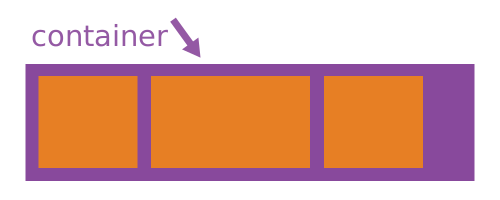
显示#
display 可以是 flex 或 inline-flex。这定义了一个弹性容器(块级或内联)。
flex-flow#
flex-flow 是 flex-direction 和 flex-wrap 属性的简写,它们共同定义弹性容器的主轴和交叉轴。默认值为 row nowrap。
flex-direction(column-reverse | column | row | row-reverse )这定义了主轴方向,从而决定了弹性项目在弹性容器中的排列方向。弹性盒布局(除了可选的换行外)是一个单向布局概念。可以将弹性项目想象为主要在水平行或垂直列中排列。

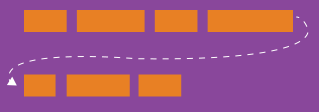
flex-wrap(nowrap | wrap | wrap-reverse)默认情况下,弹性项目会全部尝试放在一行上。您可以通过此属性更改此行为,允许项目根据需要换行。方向在此也起到作用,决定了新行的堆叠方向。
justify-content#
justify-content 可以是下列值之一:flex-start, flex-end, center, space-between, space-around。这一定义了沿主轴的对齐方式。当一行中的所有弹性项目为不可伸缩时,或为可伸缩但已达到其最大尺寸时,它有助于分配剩余的自由空间。当项目溢出该行时,它还会对项目的对齐方式施加一定的控制。

align-items#
align-items 可以是 flex-start, flex-end, center, baseline, stretch 中的一个。这定义了 flex 项目在当前行的交叉轴上布局的默认行为。可以将其视为交叉轴(垂直于主轴)上的 justify-content 版本。

align-content#
align-content 可以是 flex-start, flex-end, center, baseline, stretch 中的一个。这会在交叉轴上有额外空间时对齐弹性容器的行,类似于 justify-content 在主轴上对齐各个项目的方式。

注意:当只有一行弹性项目时,此属性无效。
项目的属性#
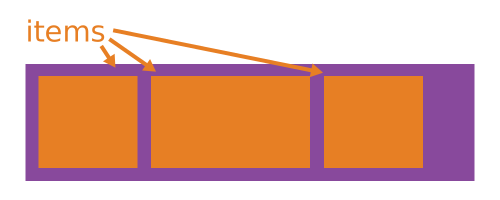
如果父元素不是flexbox容器(即具有等于display属性为flex或inline-flex),则与flexbox相关的CSS属性对项目没有影响。
订单#
默认情况下,弹性项目按照源码顺序排列。不过,order属性控制它们在弹性容器中的显示顺序。

弹性布局#
flex 是三个属性的简写,包括 flex-grow、flex-shrink 和 flex-basis 的组合。第二和第三个参数(flex-shrink 和 flex-basis)是可选的。默认值为 0 1 auto。
flex-grow这定义了弹性项目在必要时增长的能力。它接受一个无单位的值作为比例。它规定了项目应该占用弹性容器内可用空间的多少。
如果所有项目的 flex-grow 都设置为 1,容器中的剩余空间将平均分配给所有子项。如果其中一个子项值为 2,该子项将占用其他子项两倍的剩余空间(或者至少会尝试这样做)。

flex-shrink这定义了弹性项目在必要时收缩的能力。
flex-basis这定义了在分配剩余空间之前元素的默认大小。它可以是长度(例如
20%,5rem等)或关键字。auto关键字意为 "查看我的宽度或高度属性"。
align-self#
align-self 允许为单独的弹性项目覆盖默认对齐方式(或由 align-items 指定的对齐方式)。

VBox与HBox辅助工具#
VBox 和 HBox 辅助类提供了简单的默认设置,用于在垂直和水平盒子中排列子部件。它们大致等同于:
def VBox(*pargs, **kwargs):
    """Displays multiple widgets vertically using the flexible box model."""
    box = Box(*pargs, **kwargs)
    box.layout.display = 'flex'
    box.layout.flex_flow = 'column'
    box.layout.align_items = 'stretch'
    return box

def HBox(*pargs, **kwargs):
    """Displays multiple widgets horizontally using the flexible box model."""
    box = Box(*pargs, **kwargs)
    box.layout.display = 'flex'
    box.layout.align_items = 'stretch'
    return box
示例#
四个按钮在一个VBox中。项目拉伸至最大宽度,位于垂直框中,占据可用空间的50%。
from ipywidgets import Layout, Button, Box

items_layout = Layout( width='auto')     # override the default width of the button to 'auto' to let the button grow

box_layout = Layout(display='flex',
                    flex_flow='column',
                    align_items='stretch',
                    border='solid',
                    width='50%')

words = ['correct', 'horse', 'battery', 'staple']
items = [Button(description=word, layout=items_layout, button_style='danger') for word in words]
box = Box(children=items, layout=box_layout)
box
三个按钮放入一个HBox中。项目按它们的权重比例伸缩。
from ipywidgets import Layout, Button, Box, VBox

# Items flex proportionally to the weight and the left over space around the text
items_auto = [
    Button(description='weight=1; auto', layout=Layout(flex='1 1 auto', width='auto'), button_style='danger'),
    Button(description='weight=3; auto', layout=Layout(flex='3 1 auto', width='auto'), button_style='danger'),
    Button(description='weight=1; auto', layout=Layout(flex='1 1 auto', width='auto'), button_style='danger'),
 ]

# Items flex proportionally to the weight
items_0 = [
    Button(description='weight=1; 0%', layout=Layout(flex='1 1 0%', width='auto'), button_style='danger'),
    Button(description='weight=3; 0%', layout=Layout(flex='3 1 0%', width='auto'), button_style='danger'),
    Button(description='weight=1; 0%', layout=Layout(flex='1 1 0%', width='auto'), button_style='danger'),
 ]
box_layout = Layout(display='flex',
                    flex_flow='row',
                    align_items='stretch',
                    width='70%')
box_auto = Box(children=items_auto, layout=box_layout)
box_0 = Box(children=items_0, layout=box_layout)
VBox([box_auto, box_0])
一个更高级的示例:反应式表单。
表单是一个宽度为'50%'的VBox。VBox中的每一行都是一个HBox,用于在内容之间用空格进行对齐。
from ipywidgets import Layout, Button, Box, FloatText, Textarea, Dropdown, Label, IntSlider

form_item_layout = Layout(
    display='flex',
    flex_flow='row',
    justify_content='space-between'
)

form_items = [
    Box([Label(value='Age of the captain'), IntSlider(min=40, max=60)], layout=form_item_layout),
    Box([Label(value='Egg style'),
         Dropdown(options=['Scrambled', 'Sunny side up', 'Over easy'])], layout=form_item_layout),
    Box([Label(value='Ship size'),
         FloatText()], layout=form_item_layout),
    Box([Label(value='Information'),
         Textarea()], layout=form_item_layout)
]

form = Box(form_items, layout=Layout(
    display='flex',
    flex_flow='column',
    border='solid 2px',
    align_items='stretch',
    width='50%'
))
form
更高级的示例:轮播组件。
from ipywidgets import Layout, Button, VBox, Label

item_layout = Layout(height='100px', min_width='40px')
items = [Button(layout=item_layout, description=str(i), button_style='warning') for i in range(40)]
box_layout = Layout(overflow='scroll hidden',
                    border='3px solid black',
                    width='500px',
                    height='',
                    flex_flow='row',
                    display='flex')
carousel = Box(children=items, layout=box_layout)
VBox([Label('Scroll horizontally:'), carousel])
网格布局#
GridBox 类是 Box 小部件的一个特例。
Box 小部件支持完整的 CSS flexbox 规范,能够在 Jupyter notebook 中实现丰富的响应式布局。它旨在提供一种高效的方式来布置、对齐和分配容器内项目之间的空间。
再次说明,整个网格布局规范通过容器部件(Box)和所包含项的layout属性公开。可以在所有包含项之间共享相同的layout属性。
以下关于flexbox布局的flexbox教程遵循Chris House的文章A Complete Guide to Grid的思路,并使用该篇文章with permission中的文字和各种图片。
基础与浏览器支持#
要开始使用,您需要将容器元素定义为具有 display: grid 的网格,使用 grid-template-rows、grid-template-columns 和 grid_template_areas 设置列和行的大小,然后使用 grid-column 和 grid-row 将其子元素放置到网格中。与 flexbox 类似,网格项目的源顺序并不重要。您的 CSS 可以以任何顺序排列它们,这使得使用媒体查询重新排列网格变得非常容易。想象一下定义整个页面的布局,然后只需几行 CSS 代码即可完全重新排列以适应不同的屏幕宽度。网格是有史以来最强大的 CSS 模块之一。
截至2017年3月,大多数浏览器都推出了对CSS Grid的原生、无前缀支持:Chrome(包括安卓版)、Firefox、Safari(包括iOS版)和Opera。另一方面,Internet Explorer 10和11虽然支持,但实现方式较旧,语法已过时。现在是使用网格构建的时候了!
重要术语#
在深入了解网格概念之前,理解术语非常重要。由于这里涉及的术语在概念上都有点相似,如果不先记住网格规范中定义的含义,很容易将它们混淆。但别担心,术语并不多。
网格容器
应用了 display: grid 的元素。它是所有网格项的直接父级。在此示例中,container 是网格容器。
<div class="container">
  <div class="item item-1"></div>
  <div class="item item-2"></div>
  <div class="item item-3"></div>
</div>
网格项
网格容器的子元素(例如直接后代)。这里的项目元素是网格项,但子项不是。
<div class="container">
  <div class="item"></div>
  <div class="item">
  	<p class="sub-item"></p>
  </div>
  <div class="item"></div>
</div>
网格线
构成网格结构的分隔线。它们可以是垂直的(“列网格线”)或水平的(“行网格线”),并位于行或列的任一侧。这里的黄线是列网格线的一个示例。

网格轨道
两个相邻网格线之间的空间。你可以把它们看作是网格的列或行。这是第二和第三行网格线之间的网格轨道。

网格单元格
两个相邻行和两个相邻列网格线之间的空间。它是网格的单个“单元”。这是位于行网格线1和2以及列网格线2和3之间的网格单元。

网格区域
四个网格线所围成的总空间。一个网格区域可以由任意数量的网格单元组成。这里是第1行到第3行的网格线和第1列到第3列的网格线之间的网格区域。

父级属性#
grid-template-rows, grid-template-columns
通过一个以空格分隔的值列表定义网格的列和行。这些值代表轨道尺寸,它们之间的空格代表网格线。
值:
<track-size>- 可以是长度、百分比或网格中可用空间的一部分(使用fr单位)<line-name>- 您选择的任意名称
grid-template-areas
通过引用由grid-area属性指定的网格区域名称来定义网格模板。重复网格区域的名称会使内容跨越这些单元格。句点表示空单元格。该语法本身提供了网格结构的可视化。
值:
<grid-area-name>- 使用grid-area指定的网格区域名称.- 一个句点表示一个空的网格单元格none- 未定义任何网格区域
网格间距
grid-row-gap和grid-column-gap的简写
值:
<grid-row-gap>,<grid-column-gap>- 长度数值
其中 grid-row-gap 和 grid-column-gap 指定了网格线的尺寸。你可以将其理解为设置列与行之间的沟槽宽度。
<line-size>- 一个长度值
注意:grid-前缀将被移除,grid-gap将重命名为gap。无前缀属性已在Chrome 68+、Safari 11.2 Release 50+和Opera 54+中得到支持。
align-items
沿块(列)轴对齐网格项(与沿内联(行)轴对齐的 justify-items 相对)。此值适用于容器内的所有网格项。
值:
start- 将项目对齐到其单元格的起始边缘end- 将项目对齐到其单元格的末端边缘center- 将项目在其单元格内居中对齐stretch- 填充单元格的整个高度(此为默认设置)
justify-items
将网格项目沿内联(行)轴对齐(与沿块(列)轴对齐的align-items相反)。此值适用于容器内的所有网格项目。
值:
start- 将项目对齐到其单元格的起始边缘end- 将项目对齐到其单元格的末端边缘center- 将项目在其单元格内居中对齐stretch- 填充单元格的整个宽度(这是默认设置)
align-content
有时网格的总尺寸可能小于其网格容器的尺寸。如果所有网格项都使用非弹性单位(如px)进行大小调整,则可能发生这种情况。在这种情况下,您可以设置网格在网格容器内的对齐方式。该属性使网格沿块(列)轴对齐(与justify-content属性相反,后者使网格沿内联(行)轴对齐)。
值:
start- 将网格对齐到网格容器的起始边缘end- 将网格对齐到网格容器的末端边缘center- 将网格对齐到网格容器的中心stretch- 调整网格项的大小,使网格能够填满网格容器的全部高度space-around- 在每个网格项目之间均匀分布空间,两端留有半尺寸空间space-between- 在每个网格项之间放置相等的空间,但在最远端不留空间space-evenly- 在每个网格项目之间均匀分布间距,包括最远端
justify-content
有时,网格的总大小可能小于其网格容器的大小。如果所有网格项都使用非弹性单位(如px)调整大小,则可能发生这种情况。在这种情况下,您可以设置网格在容器内的对齐方式。此属性沿内联(行)轴对齐网格(与align-content属性相反,后者沿块(列)轴对齐网格)。
值:
start- 将网格对齐到网格容器的起始边缘end- 将网格对齐到网格容器的末端边缘center- 将网格对齐到网格容器的中心stretch- 调整网格项大小以使网格填满网格容器的整个宽度space-around- 在每个网格项目之间均匀分布空间,两端留有半尺寸空间space-between- 在每个网格项之间放置相等的空间,但在最远端不留空间space-evenly- 在每个网格项目之间均匀分布间距,包括最远端
grid-auto-columns, grid-auto-rows
指定任何自动生成的网格轨道(又称隐式网格轨道)的大小。当网格项目数量超过网格中的单元格,或者网格项目被放置于显式网格之外时,会创建隐式轨道。(详见显式网格与隐式网格的区别)
值:
<track-size>- 可以是长度、百分比或网格中可用空间的一部分(使用fr单位)
项目的属性#
注意:float、display: inline-block、display: table-cell、vertical-align 和 column-?? 属性对网格项无效。
grid-column, grid-row
通过引用特定的网格线来确定网格项目在网格中的位置。grid-column-start/grid-row-start是项目开始的行,而grid-column-end/grid-row-end是项目结束的行。
值:
<line>- 可以是一个数字,引用带编号的网格线,或者是一个名称,引用命名的网格线span <number>- 该项将跨越所提供的网格轨道数量span <name>- 该条目将跨越直到遇到具有所提供名称的下一行auto- 表示自动放置、自动跨度或默认跨度为1
.item {
  grid-column: <number> | <name> | span <number> | span <name> | auto /
               <number> | <name> | span <number> | span <name> | auto
  grid-row: <number> | <name> | span <number> | span <name> | auto /
            <number> | <name> | span <number> | span <name> | auto
}
示例:
.item-a {
  grid-column: 2 / five;
  grid-row: row1-start / 3;
}

.item-b {
  grid-column: 1 / span col4-start;
  grid-row: 2 / span 2;
}

如果未声明grid-column / grid-row,项目默认将跨越1个轨道。
项目可以相互重叠。你可以使用 z-index 来控制它们的堆叠顺序。
网格区域
给项目命名,以便可以通过使用grid-template-areas属性创建的模板来引用。或者,这个属性可以作为grid-row-start + grid-column-start + grid-row-end + grid-column-end的更为简短的简写形式。
值:
<name>- 您选择的名称<row-start> / <column-start> / <row-end> / <column-end>- 可以是数字或命名线
.item {
  grid-area: <name> | <row-start> / <column-start> / <row-end> / <column-end>;
}
示例:
作为一种为项目命名的方式:
.item-d {
  grid-area: header
}
作为 grid-row-start + grid-column-start + grid-row-end + grid-column-end 的简写:
.item-d {
  grid-area: 1 / col4-start / last-line / 6
}

justify-self
将网格项在单元格内沿行内(行)轴对齐(与沿块(列)轴对齐的 align-self 相反)。此值适用于单个单元格内的网格项。
值:
start- 将网格项对齐到单元格的起始边缘end- 将网格项与单元格的末端边缘对齐center- 将网格项在单元格中居中对齐stretch- 填充单元格的整个宽度(这是默认设置)
.item {
  justify-self: start | end | center | stretch;
}
示例:
.item-a {
  justify-self: start;
}

.item-a {
  justify-self: end;
}

.item-a {
  justify-self: center;
}

.item-a {
  justify-self: stretch;
}

要为网格中所有项目设置对齐方式,此行为也可以通过网格容器上的justify-items属性进行设置。
from ipywidgets import Button, GridBox, Layout, ButtonStyle
按名称放置项目:
header  = Button(description='Header',
                 layout=Layout(width='auto', grid_area='header'),
                 style=ButtonStyle(button_color='lightblue'))
main    = Button(description='Main',
                 layout=Layout(width='auto', grid_area='main'),
                 style=ButtonStyle(button_color='moccasin'))
sidebar = Button(description='Sidebar',
                 layout=Layout(width='auto', grid_area='sidebar'),
                 style=ButtonStyle(button_color='salmon'))
footer  = Button(description='Footer',
                 layout=Layout(width='auto', grid_area='footer'),
                 style=ButtonStyle(button_color='olive'))

GridBox(children=[header, main, sidebar, footer],
        layout=Layout(
            width='50%',
            grid_template_rows='auto auto auto',
            grid_template_columns='25% 25% 25% 25%',
            grid_template_areas='''
            "header header header header"
            "main main . sidebar "
            "footer footer footer footer"
            ''')
       )
设置行和列模板以及间隙
GridBox(children=[Button(layout=Layout(width='auto', height='auto'),
                         style=ButtonStyle(button_color='darkseagreen')) for i in range(9)
                 ],
        layout=Layout(
            width='50%',
            grid_template_columns='100px 50px 100px',
            grid_template_rows='80px auto 80px',
            grid_gap='5px 10px')
       )
Image 布局和尺寸调整#
由于历史原因(HTML标签img在CSS之前就已存在)和实际原因(图像具有固有尺寸),图像的布局和大小与其他元素略有不同。
图像尺寸设置特别令人困惑,因为有两种看似合理的方法来指定图像大小。Image 小部件具有 width 和 height 属性,这些属性对应于 HTML img 标签中同名的属性。此外,Image 小部件与所有其他小部件一样,具有一个 layout,该布局同样包含 width 和 height 属性。
此外,对图像应用了一些不适用于其他小部件的CSS样式:max_width设置为100%,height设置为auto。
您不应依赖 Image.width 或 Image.height 来确定图像小部件的显示宽度和高度。任何CSS样式,无论是通过 Image.layout 还是其他来源,都将覆盖 Image.width 和 Image.height。
当单独显示一个Image控件时,将Image.layout.width设置为所需宽度,将显示具有与原始图像相同宽高比的Image控件。
当将Image放置在Box(或HBox或VBox)内时,结果取决于是否在Box上设置了宽度。如果已设置,则图像将被拉伸(或压缩)以适应盒子,因为Image.layout.max_width为100%,所以图像会填充容器。这通常不会保持图像的宽高比。
控制容器内Image的显示#
使用 Image.layout.object_fit 来控制图像在容器(如盒子)内的缩放方式。可能的取值为:
'contain': 将图像适配到其内容框中,同时保持宽高比。如果容器的任何部分未被图像覆盖,则会显示容器的背景。内容框的大小是:如果容器比图像小,则为容器的大小;如果容器比图像大,则为图像的大小。'cover': 完全填充内容框,同时保持图像的宽高比,必要时裁切图像。'fill': 完全填充内容框,根据需要拉伸/压缩图像。'none': 不调整大小;图像将被容器裁剪.'scale-down': 执行与contain或none相同的操作,使用能产生更小显示图像的选项。None(Python 值): 从布局中移除object_fit; 效果与'fill'相同。
使用 Image.layout.object_position 控制图像在容器(如盒子)内的定位方式。默认值确保图像在盒子中居中。在某些情况下,Image.layout.object_position 的效果取决于 Image.layout.object_fit 的值。
有多种方式可以指定 object_position 的值,如下所述。
object_fit 示例#
在下面的示例中,一张图片被显示在一个绿色框内,以展示object_fit的每个值。
为保持示例的一致性,在此定义通用代码。
from ipywidgets import Layout, Box, VBox, HBox, HTML, Image

fit_options = ['contain', 'cover', 'fill', 'scale-down', 'none', None]

hbox_layout = Layout()
hbox_layout.width = '100%'
hbox_layout.justify_content = 'space-around'

green_box_layout = Layout()
green_box_layout.width = '100px'
green_box_layout.height = '100px'
green_box_layout.border = '2px solid green'


def make_box_for_grid(image_widget, fit):
    """
    Make a VBox to hold caption/image for demonstrating
    option_fit values.
    """
    # Make the caption
    if fit is not None:
        fit_str = "'{}'".format(fit)
    else:
        fit_str = str(fit)

    h = HTML(value='' + str(fit_str) + '')

    # Make the green box with the image widget inside it
    boxb = Box()
    boxb.layout = green_box_layout
    boxb.children = [image_widget]

    # Compose into a vertical box
    vb = VBox()
    vb.layout.align_items = 'center'
    vb.children = [h, boxb]
    return vb

# Use this margin to eliminate space between the image and the box
image_margin = '0 0 0 0'

# Set size of captions in figures below
caption_size = 'h4'
在比原始图像更小的Box中使用object_fit#
每种效果都可以在下图中看到。每种情况下,图像都位于带有绿色边框的框内。原始图像尺寸为600x300,图像中的网格框为正方形。由于图像比框宽度更宽,因此内容框的大小即为容器的尺寸。
with open('images/gaussian_with_grid.png', 'rb') as f:
    im_600_300 = f.read()
boxes = []
for fit in fit_options:
    ib = Image(value=im_600_300)
    ib.layout.object_fit = fit
    ib.layout.margin = image_margin

    boxes.append(make_box_for_grid(ib, fit))

vb = VBox()
h = HTML(value='<{size}>Examples of <code>object_fit</code> with large image</{size}>'.format(size=caption_size))
vb.layout.align_items = 'center'
hb = HBox()
hb.layout = hbox_layout
hb.children = boxes

vb.children = [h, hb]
vb
object_fit 在一个大于原始图像的 Box 中#
每种的效果都可以在下图中看到。在每种情况下,图像都位于带有绿色边框的盒子中。原始图像为50x25,图像中的网格框是正方形。
with open('images/gaussian_with_grid_tiny.png', 'rb') as f:
    im_50_25 = f.read()
boxes = []
for fit in fit_options:
    ib = Image(value=im_50_25)
    ib.layout.object_fit = fit
    ib.layout.margin = image_margin
    boxes.append(make_box_for_grid(ib, fit))

vb = VBox()
h = HTML(value='<{size}>Examples of <code>object_fit</code> with small image</{size}>'.format(size=caption_size))
vb.layout.align_items = 'center'
hb = HBox()
hb.layout = hbox_layout
hb.children = boxes

vb.children = [h, hb]
vb
或许会令人惊讶,尽管对option_fit值的描述如此,但在所有情况下,图像实际上都没有填满整个框。原因是底层图像只有50像素宽,是框宽度的一半,所以fill和cover意味着“填充/覆盖由图像大小决定的内容框”。
object_fit 在比原始图像大的 Box 中:使用图像布局宽度 100% 来填充容器#
如果图像的布局宽度设置为100%,它将填充其所放置的框。此示例还说明了'contain'和'scale-down'之间的区别。'scale-down'的效果要么与'contain'相同,要么与'none'相同,具体取决于哪个会导致显示更小的图像。在这种情况下,较小的图像来自于未进行任何调整,因此显示的是这样的图像。
boxes = []
for fit in fit_options:
    ib = Image(value=im_50_25)
    ib.layout.object_fit = fit
    ib.layout.margin = image_margin

    # NOTE WIDTH IS SET TO 100%
    ib.layout.width = '100%'

    boxes.append(make_box_for_grid(ib, fit))

vb = VBox()
h = HTML(value='<{size}>Examples of <code>object_fit</code> with image '
               'smaller than container</{size}>'.format(size=caption_size))
vb.layout.align_items = 'center'
hb = HBox()
hb.layout = hbox_layout
hb.children = boxes

vb.children = [h, hb]
vb
object_position 示例#
有几种设置对象位置的方法:
使用诸如
top和left之类的关键词来描述图像应如何放置在容器中。使用两个位置(以像素为单位),用于从容器左上角到图像左上角的偏移量。偏移量可以是正数或负数,可用于将图像定位在框的外部。
在每个方向使用百分比作为偏移量。如果图像小于容器,该百分比是图像周围垂直或水平空白区域的占比;如果图像大于容器,则是图像超出容器部分的占比。
像素与百分比偏移的混合。
关键词和偏移量的混合。
由 object_fit 决定的图像缩放在某些情况下会优先于定位。例如,如果 object_fit 是 fill,意味着图像将填充容器而不保持宽高比,那么 object_position 将不起作用,因为实际上没有定位需要执行。
另一种理解方式是:object_position 指定了当特定方向上有空白空间时,图像周围的空白空间在容器中应如何分布。
使用关键词指定 object_position#
这种形式的 object_position 接受两个关键字,一个用于图像在容器中的水平位置,一个用于垂直位置,按此顺序。
水平位置必须是以下之一:
'left': 图像的左侧应与容器的左侧对齐'center': 图像应在容器中水平居中。'right':图像的右侧应与容器的右侧对齐。
垂直位置必须为以下之一
'top': 图像顶部应与容器顶部对齐。‘
center’: 图像应在容器内垂直居中显示。'bottom': 图像的底部应与容器的底部对齐。
每种效果如下所示,一次用于图像小于容器的情况,一次用于图像大于容器的情况。
在以下示例中,object_fit 被设置为 'none',以便图像不被缩放。
object_fit = 'none'
image_value = [im_600_300, im_50_25]
horz_keywords = ['left', 'center', 'right']
vert_keywords = ['top', 'center', 'bottom']

rows = []
for image, caption  in zip(image_value, ['600 x 300 image', '50 x 25 image']):
    cols = []
    for horz in horz_keywords:
        for vert in vert_keywords:
            ib = Image(value=image)
            ib.layout.object_position = '{horz} {vert}'.format(horz=horz, vert=vert)
            ib.layout.margin = image_margin
            ib.layout.object_fit = object_fit
            # ib.layout.height = 'inherit'
            ib.layout.width = '100%'
            cols.append(make_box_for_grid(ib, ib.layout.object_position))
    hb = HBox()
    hb.layout = hbox_layout
    hb.children = cols
    rows.append(hb)

vb = VBox()

h1 = HTML(value='<{size}><code> object_position </code> by '
                'keyword with large image</{size}>'.format(size=caption_size))
h2 = HTML(value='<{size}><code> object_position </code> by '
                'keyword with small image</{size}>'.format(size=caption_size))

vb.children = [h1, rows[0], h2, rows[1]]
vb.layout.height = '400px'
vb.layout.justify_content = 'space-around'
vb.layout.align_items = 'center'
vb
通过像素偏移指定 object_position#
可以指定图像左上角相对于容器左上角的偏移量,单位为像素。两个偏移量中的第一个是水平方向的,第二个是垂直方向的,任何一个都可以为负数。如果使用足够大的偏移量使图像位于容器外部,将会导致图像被隐藏。
图片首先使用 object_fit(如果未指定任何值,则默认为 fill)的值进行缩放,然后应用偏移量。
偏移量可以通过结合关键字和像素偏移从底部和/或右侧指定。例如,right 10px bottom 20px 将图像的右侧从容器右边缘偏移10像素,图像底部从容器底部偏移20像素。
object_fit = ['none', 'contain', 'fill', 'cover']
offset = '20px 10px'
image_value = [im_600_300]

boxes = []
for image, caption  in zip(image_value, ['600 x 300 image', ]):
    for fit in object_fit:
        ib = Image(value=image)
        ib.layout.object_position = offset
        ib.layout.margin = image_margin
        ib.layout.object_fit = fit
        # ib.layout.height = 'inherit'
        ib.layout.width = '100%'
        title = 'object_fit: {}'.format(ib.layout.object_fit)
        boxes.append(make_box_for_grid(ib, title))

vb = VBox()
h = HTML(value='<{size}><code>object_position</code> by '
               'offset {offset} with several '
               '<code>object_fit</code>s with large image</{size}>'.format(size=caption_size,
                                                         offset=offset))
vb.layout.align_items = 'center'
hb = HBox()
hb.layout = hbox_layout
hb.children = boxes

vb.children = [h, hb]
vb
指定偏移量作为百分比的object_position#
可以指定图像左上角相对于容器左上角的偏移量,以百分比表示。两个偏移量中第一个是水平方向的,第二个是垂直方向的,任一偏移量都可以为负数。使用足够大的偏移量使图像位于容器外部将导致图像被隐藏。
需要理解的重要一点是,当图像小于容器时,这是每个方向上空白区域的百分比,因此50% 50%会将图像居中。
如果图像在使用object_fit缩放后大于容器,那么偏移量是图像超出容器溢出部分的百分比。这意味着50% 50%也会将大于容器的图像居中。值为10% 90%会将图像超出容器部分的10%放在左边缘左侧,90%垂直放在顶边缘上方。
与通过关键字指定object_position一样,object_fit可以防止对图像应用任何偏移。