跳至内容

处理不同的数据类型#

在本章节中,您将学习如何使用n8n核心节点处理不同类型的数据。

HTML and XML data#

You're most likely familiar with HTML and XML.

HTML vs. XML

HTML is a markup language used to describe the structure and semantics of a web page. XML looks similar to HTML, but the tag names are different, as they describe the kind of data they hold.

If you need to process HTML or XML data in your n8n workflows, use the HTML node or the XML node.

Use the HTML node to extract HTML content of a webpage by referencing CSS selectors. This is useful if you want to collect structured information from a website (web-scraping).

HTML Exercise#

获取最新的n8n博客文章标题:

  1. 使用HTTP请求节点向URL https://blog.n8n.io/发起GET请求(该端点无需身份验证)。
  2. Connect an HTML node and configure it to extract the title of the first blog post on the page.
    • Hint: If you're not familiar with CSS selectors or reading HTML, the CSS selector .post .item-title a should help!
Show me the solution
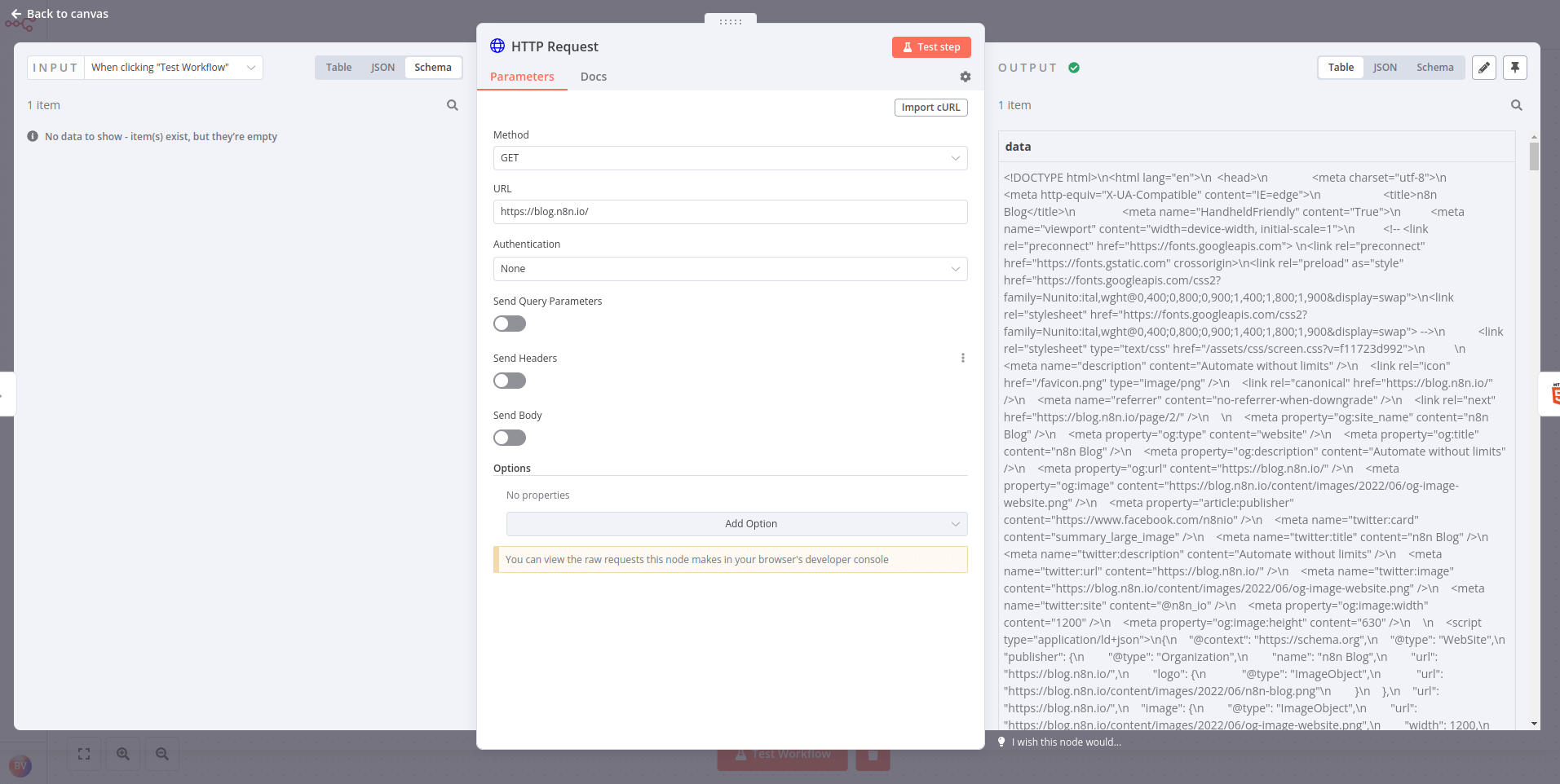
  1. Configure the HTTP Request node with the following parameters:
    • 认证方式: 无
    • 请求方法: GET
    • URL: https://blog.n8n.io/

Result of HTTP Request node
HTTP请求节点的结果

  1. Connect an HTML node to the HTTP Request node and configure the former's parameters:
    • Operation: Extract HTML Content
    • 源数据: JSON
    • JSON属性: data
    • Extraction Values:
      • : title
      • CSS选择器: .post .item-title a
      • Return Value: HTML

您可以添加更多值以提取更多数据。

结果应如下所示:
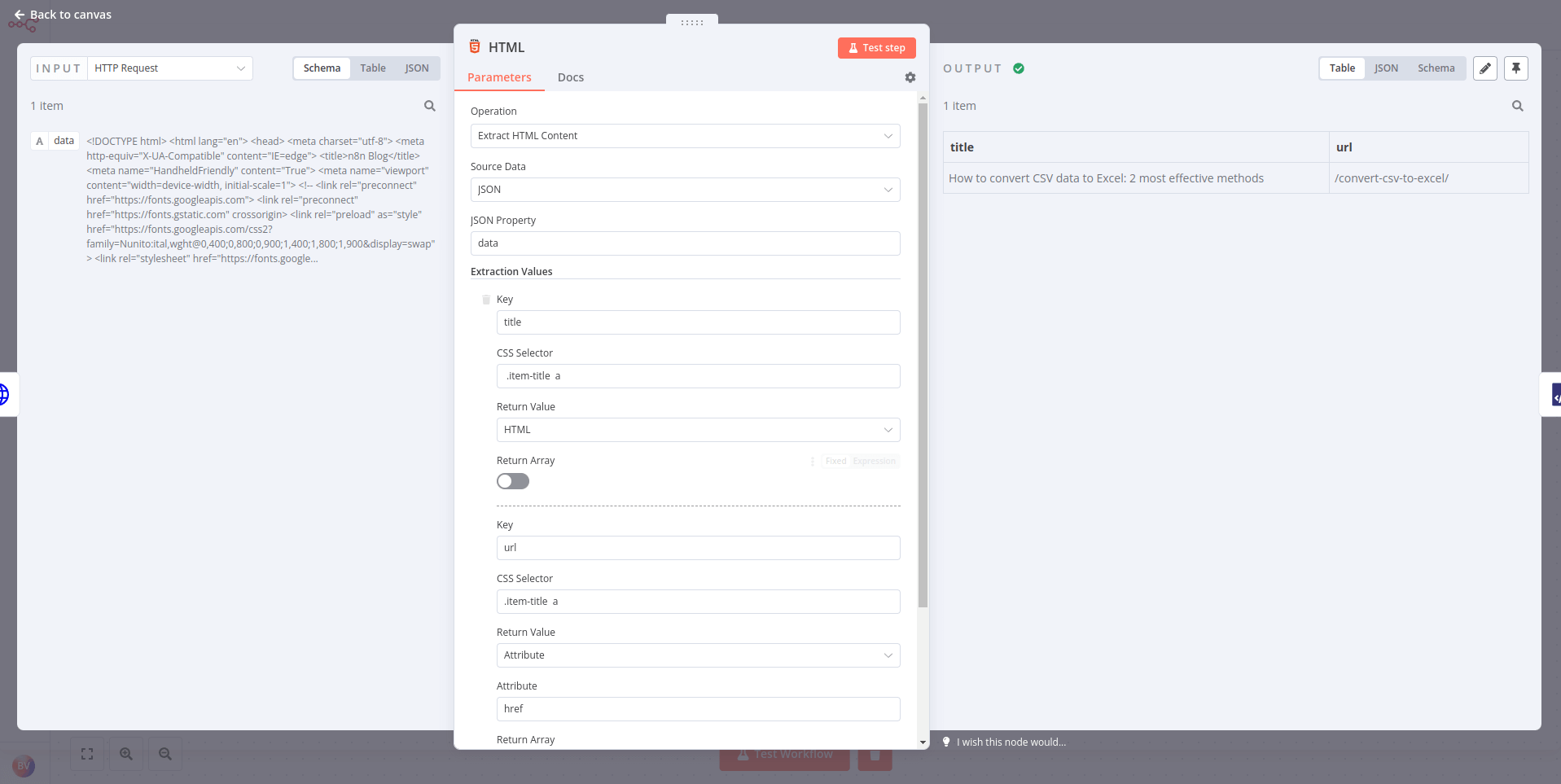
Result of HTML Extract node

使用XML节点将XML转换为JSON或将JSON转换为XML。如果您需要与使用不同格式(XML或JSON)的Web服务交互,并在它们之间以两种格式获取和提交数据,此操作非常有用。

XML 练习#

第一章的最后一个练习中,你使用了HTTP请求节点向PokéAPI发起请求。本次练习我们将再次使用同一个API,但会将输出转换为XML格式:

  1. 添加一个HTTP请求节点,向PokéAPI发起相同请求,地址为https://pokeapi.co/api/v2/pokemon
  2. 使用XML节点将JSON输出转换为XML。
Show me the solution
  1. To get the pokemon from the PokéAPI, execute the HTTP Request node with the following parameters:
    • 认证方式: 无
    • 请求方法: GET
    • URL: https://pokeapi.co/api/v2/pokemon
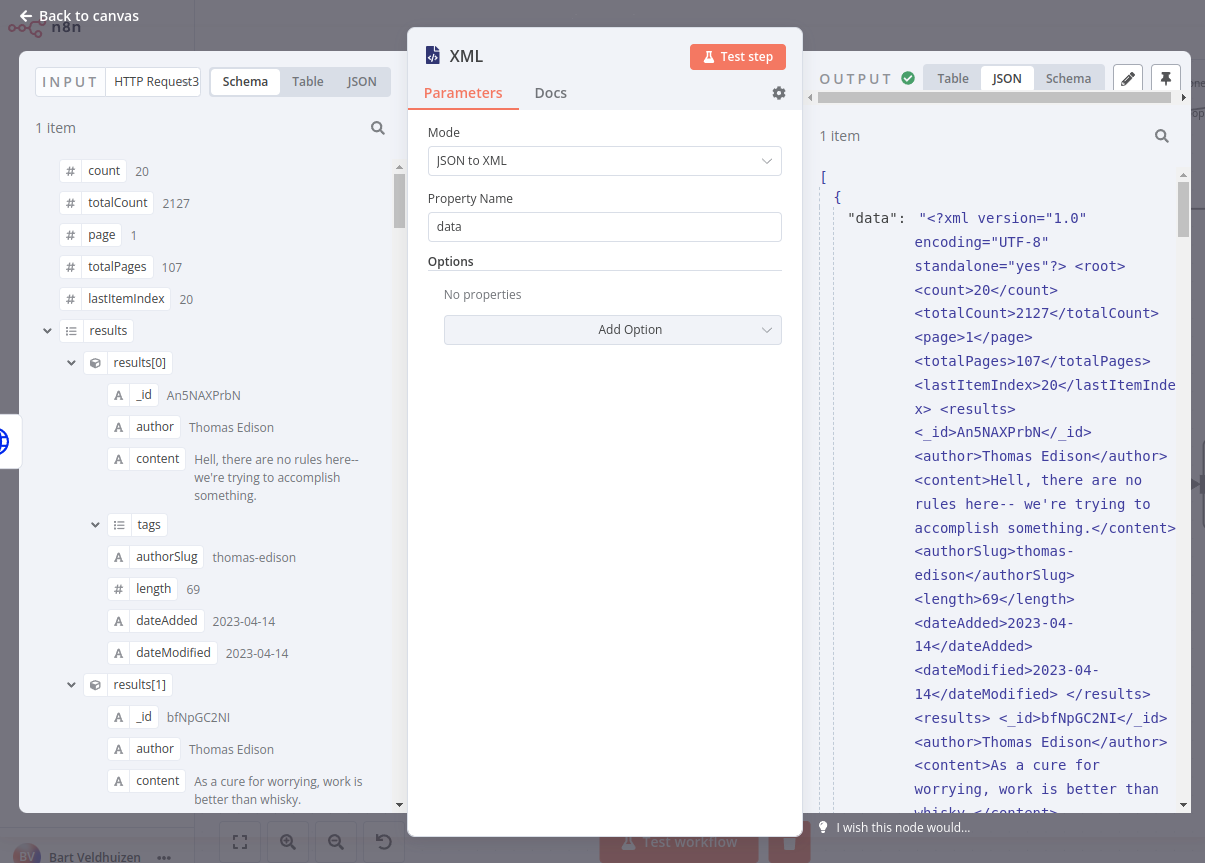
  2. Connect an XML node to it with the following parameters:
    • 模式: JSON转XML
    • 属性名称: data

结果应如下所示:

Table view of XML Node (JSON to XML)
XML节点(JSON转XML)– 表格视图

要将数据反向转换,请选择模式XML转JSON

日期、时间和间隔数据#

日期和时间数据类型包括 DATE, TIME, DATETIME, TIMESTAMP, 和 YEAR。日期和时间可以以不同格式传递,例如:

  • DATE: 2022年3月29日, 29-03-2022, 2022/03/29
  • TIME: 08:30:00, 8:30, 20:30
  • DATETIME: 2022/03/29 08:30:00
  • TIMESTAMP: 1616108400 (Unix时间戳), 1616108400000 (Unix毫秒时间戳)
  • YEAR: 2022, 22

有几种方法可以处理日期和时间:

有时,您可能需要暂停工作流执行。当您知道某个服务无法即时处理数据或返回结果较慢时,这种暂停就很有必要。在这些情况下,您不希望n8n将不完整的数据传递给下一个节点。

如果遇到这种情况,请在需要延迟的节点后使用Wait节点Wait节点会暂停工作流执行,稍后将恢复执行:

  • 在特定时间。
  • 在指定的时间间隔后。
  • 在webhook调用时。

日期练习#

构建一个工作流,将之前使用的客户数据存储节点中的输入日期增加五天。然后,如果计算出的日期在1959年之后,工作流会等待1分钟,再将计算出的日期设置为一个值。该工作流应每30分钟触发一次。

开始使用:

  1. 添加客户数据存储(n8n培训)节点,选择获取所有人员操作。返回全部。
  2. 添加日期与时间节点,将数据存储中的创建日期四舍五入到月末。输出到new-date字段。包含所有输入字段。
  3. 添加If节点来检查这个新的四舍五入日期是否在1960-01-01 00:00:00之后。
  4. 等待节点添加到该节点的True输出端,并设置为等待一分钟。
  5. 添加编辑字段(设置)节点来设置一个名为outputValue的新字段,其值为包含new-date的字符串。包含所有输入字段。
  6. 在工作流开头添加定时触发器节点,每30分钟触发一次。(测试时可保留手动触发器节点!)
Show me the solution
  1. Add the Customer Datastore (n8n training) node with the Get All People action selected.
    • 选择返回全部的选项。
  2. Add a Date & Time node connected to the Customer Datastore node. Select the option to Round a Date.
    • created日期添加为要四舍五入的日期
    • 选择 Round Up 作为 模式,并选择 End of Month 作为 目标
    • 输出字段名称设置为new-date
    • 选项中,选择添加选项并使用控件包含输入字段
  3. Add an If node connected to the Date & Time node.
    • 将 new-date 字段作为条件的第一部分添加。
    • 将比较条件设置为日期和时间 > 在之后
    • 1960-01-01 00:00:00 作为表达式的第二部分。(这应该在 True 分支中生成 3 个项目,在 False 分支中生成 2 个项目)
  4. Add a Wait node to the True output of the If node.
    • 恢复设置为After Time interval
    • 等待时间设置为1.00
    • 等待单位设置为Minutes
  5. Add an Edit Fields (Set) node to the Wait node.
    • 使用JSON或手动映射模式
    • 将名为 outputValue 的新字段设置为 new-date 字段的值。
    • 选择包含其他输入字段选项,并包含所有字段。
  6. Add a Schedule Trigger node at the beginning of the workflow.
    • 触发间隔设置为使用Minutes
    • 触发间隔分钟数设置为30。
    • 要测试您的计划,请确保激活工作流。
    • 请确保将此节点连接到您最初使用的客户数据存储(n8n training)节点

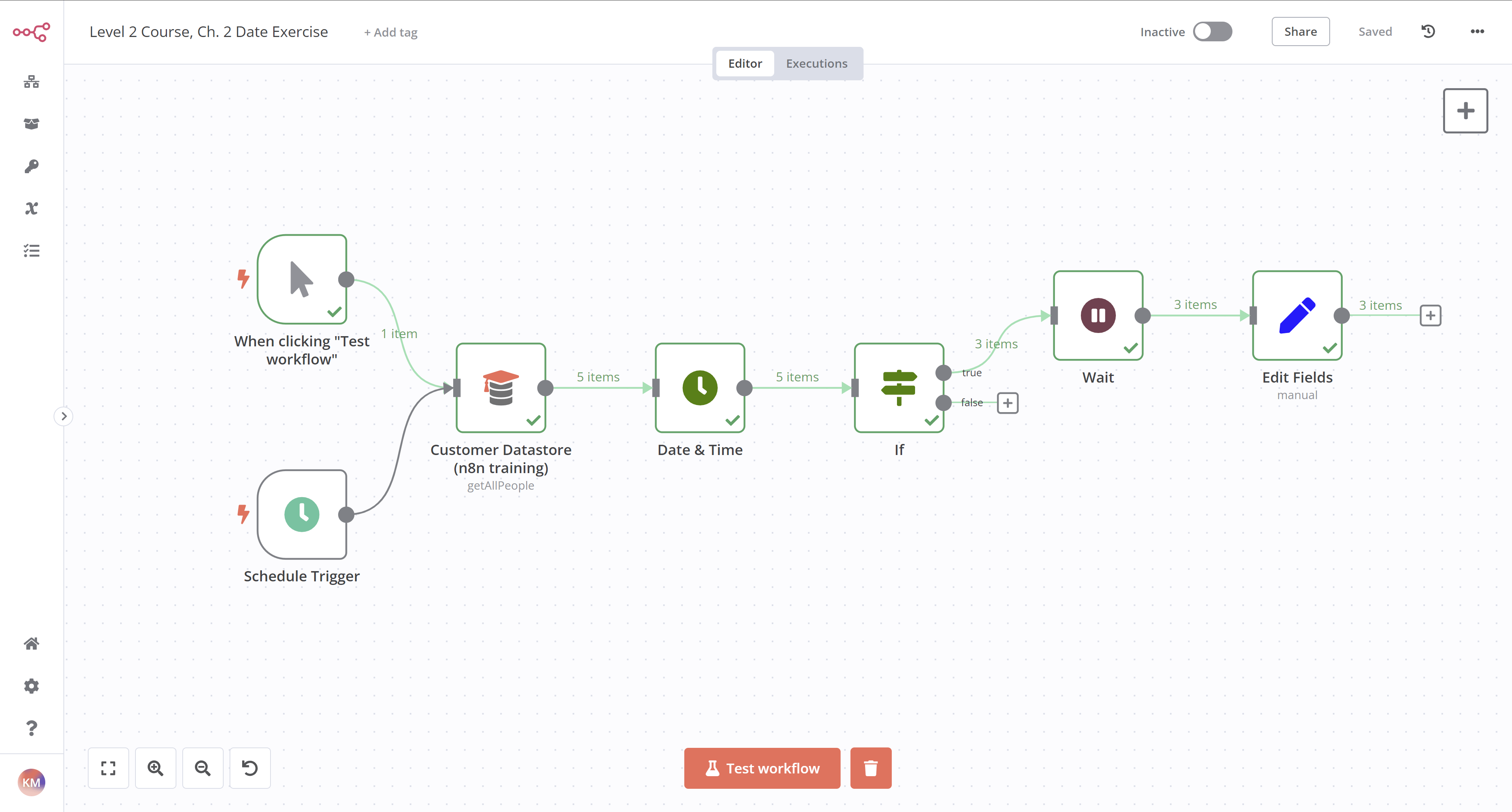
工作流应如下所示:

Workflow for transforming dates
日期转换工作流

要检查每个节点的配置,您可以复制此工作流的JSON代码,并将其粘贴到编辑器UI中,或保存为文件后导入到新工作流中。更多信息请参阅导出和导入工作流

  1
  2
  3
  4
  5
  6
  7
  8
  9
 10
 11
 12
 13
 14
 15
 16
 17
 18
 19
 20
 21
 22
 23
 24
 25
 26
 27
 28
 29
 30
 31
 32
 33
 34
 35
 36
 37
 38
 39
 40
 41
 42
 43
 44
 45
 46
 47
 48
 49
 50
 51
 52
 53
 54
 55
 56
 57
 58
 59
 60
 61
 62
 63
 64
 65
 66
 67
 68
 69
 70
 71
 72
 73
 74
 75
 76
 77
 78
 79
 80
 81
 82
 83
 84
 85
 86
 87
 88
 89
 90
 91
 92
 93
 94
 95
 96
 97
 98
 99
100
101
102
103
104
105
106
107
108
109
110
111
112
113
114
115
116
117
118
119
120
121
122
123
124
125
126
127
128
129
130
131
132
133
134
135
136
137
138
139
140
141
142
143
144
145
146
147
148
149
150
151
152
153
154
155
156
157
158
159
160
161
162
163
164
165
166
167
168
169
170
171
172
173
174
175
176
177
178
179
180
181
182
183
184
185
186
187
188
189
190
191
192
193
194
195
196
197
198
199
200
201
202
203
204
205
206
207
208
209
{
"name": "Course 2, Ch 2, Date exercise",
"nodes": [
	{
	"parameters": {},
	"id": "6bf64d5c-4b00-43cf-8439-3cbf5e5f203b",
	"name": "When clicking \"Test workflow\"",
	"type": "n8n-nodes-base.manualTrigger",
	"typeVersion": 1,
	"position": [
		620,
		280
	]
	},
	{
	"parameters": {
		"operation": "getAllPeople",
		"returnAll": true
	},
	"id": "a08a8157-99ee-4d50-8fe4-b6d7e16e858e",
	"name": "Customer Datastore (n8n training)",
	"type": "n8n-nodes-base.n8nTrainingCustomerDatastore",
	"typeVersion": 1,
	"position": [
		840,
		360
	]
	},
	{
	"parameters": {
		"operation": "roundDate",
		"date": "={{ $json.created }}",
		"mode": "roundUp",
		"outputFieldName": "new-date",
		"options": {
		"includeInputFields": true
		}
	},
	"id": "f66a4356-2584-44b6-a4e9-1e3b5de53e71",
	"name": "Date & Time",
	"type": "n8n-nodes-base.dateTime",
	"typeVersion": 2,
	"position": [
		1080,
		360
	]
	},
	{
	"parameters": {
		"conditions": {
		"options": {
			"caseSensitive": true,
			"leftValue": "",
			"typeValidation": "strict"
		},
		"conditions": [
			{
			"id": "7c82823a-e603-4166-8866-493f643ba354",
			"leftValue": "={{ $json['new-date'] }}",
			"rightValue": "1960-01-01T00:00:00",
			"operator": {
				"type": "dateTime",
				"operation": "after"
			}
			}
		],
		"combinator": "and"
		},
		"options": {}
	},
	"id": "cea39877-6183-4ea0-9400-e80523636912",
	"name": "If",
	"type": "n8n-nodes-base.if",
	"typeVersion": 2,
	"position": [
		1280,
		360
	]
	},
	{
	"parameters": {
		"amount": 1,
		"unit": "minutes"
	},
	"id": "5aa860b7-c73c-4df0-ad63-215850166f13",
	"name": "Wait",
	"type": "n8n-nodes-base.wait",
	"typeVersion": 1.1,
	"position": [
		1480,
		260
	],
	"webhookId": "be78732e-787d-463e-9210-2c7e8239761e"
	},
	{
	"parameters": {
		"assignments": {
		"assignments": [
			{
			"id": "e058832a-2461-4c6d-b584-043ecc036427",
			"name": "outputValue",
			"value": "={{ $json['new-date'] }}",
			"type": "string"
			}
		]
		},
		"includeOtherFields": true,
		"options": {}
	},
	"id": "be034e9e-3cf1-4264-9d15-b6760ce28f91",
	"name": "Edit Fields",
	"type": "n8n-nodes-base.set",
	"typeVersion": 3.3,
	"position": [
		1700,
		260
	]
	},
	{
	"parameters": {
		"rule": {
		"interval": [
			{
			"field": "minutes",
			"minutesInterval": 30
			}
		]
		}
	},
	"id": "6e8e4308-d0e0-4d0d-bc29-5131b57cf061",
	"name": "Schedule Trigger",
	"type": "n8n-nodes-base.scheduleTrigger",
	"typeVersion": 1.1,
	"position": [
		620,
		480
	]
	}
],
"pinData": {},
"connections": {
	"When clicking \"Test workflow\"": {
	"main": [
		[
		{
			"node": "Customer Datastore (n8n training)",
			"type": "main",
			"index": 0
		}
		]
	]
	},
	"Customer Datastore (n8n training)": {
	"main": [
		[
		{
			"node": "Date & Time",
			"type": "main",
			"index": 0
		}
		]
	]
	},
	"Date & Time": {
	"main": [
		[
		{
			"node": "If",
			"type": "main",
			"index": 0
		}
		]
	]
	},
	"If": {
	"main": [
		[
		{
			"node": "Wait",
			"type": "main",
			"index": 0
		}
		]
	]
	},
	"Wait": {
	"main": [
		[
		{
			"node": "Edit Fields",
			"type": "main",
			"index": 0
		}
		]
	]
	},
	"Schedule Trigger": {
	"main": [
		[
		{
			"node": "Customer Datastore (n8n training)",
			"type": "main",
			"index": 0
		}
		]
	]
	}
}
}

二进制数据#

到目前为止,您主要处理的是文本数据。但如果您想处理非文本数据(如图像或PDF文件)该怎么办?这类文件以二进制数字系统表示,因此被视为二进制数据。以这种形式存在的二进制数据无法提供有用信息,所以您需要将其转换为可读格式。

在n8n中,您可以使用以下节点处理二进制数据:

文件的读写功能仅在自托管的n8n中可用

在n8n云服务中无法直接读写磁盘文件。您将在安装n8n的机器上进行读写操作。若通过Docker运行n8n,相关命令将在n8n容器内执行而非Docker宿主机。磁盘文件读写节点会基于n8n安装路径查找文件。n8n建议使用绝对文件路径以避免错误。

要读取或写入二进制文件,您需要在节点的File(s) Selector参数(用于读取操作)或节点的File Path and Name参数(用于写入操作)中写入文件的路径(位置)。

命名正确的路径

文件路径看起来略有不同,具体取决于你如何运行n8n:

  • npm: ~/my_file.json
  • n8n cloud / Docker: /tmp/my_file.json

二进制练习1#

在我们的第一个二进制练习中,让我们将一个PDF文件转换为JSON:

  1. 发起HTTP请求获取此PDF文件:https://media.kaspersky.com/pdf/Kaspersky_Lab_Whitepaper_Anti_blocker.pdf.
  2. 使用Extract From File节点将文件从二进制转换为JSON格式。
Show me the solution

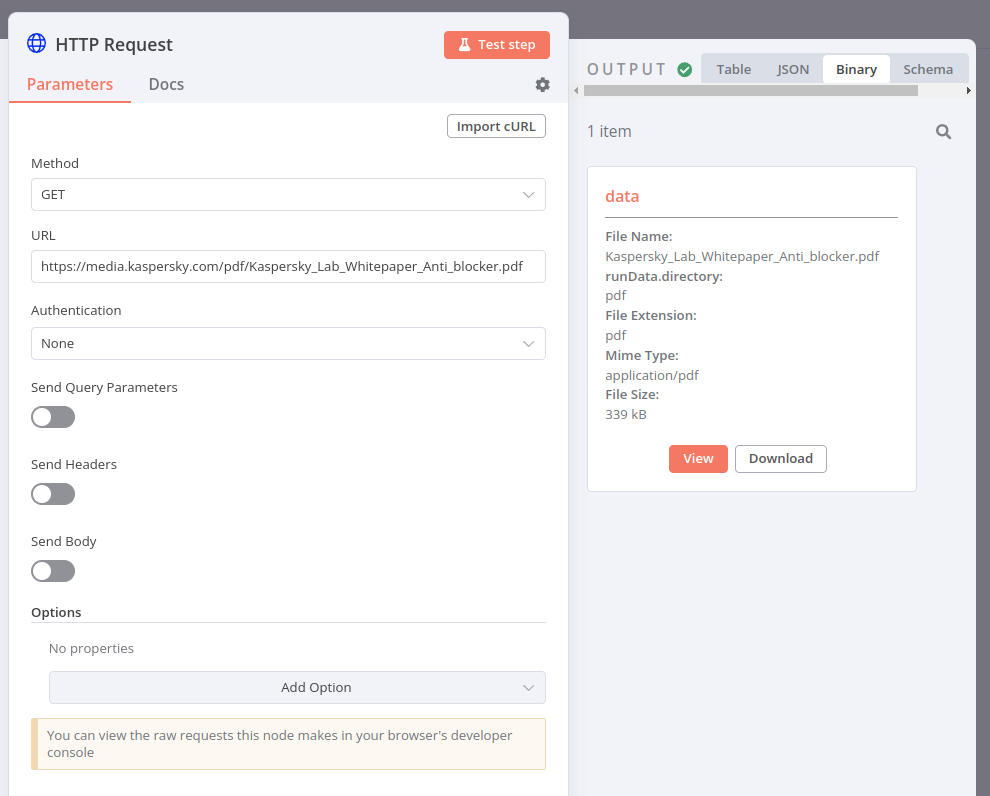
HTTP请求节点中,您应该能看到PDF文件,如下所示:

HTTP Request node to get PDF
用于获取PDF的HTTP请求节点

当你使用Extract From File节点将PDF从二进制转换为JSON时,结果应如下所示:
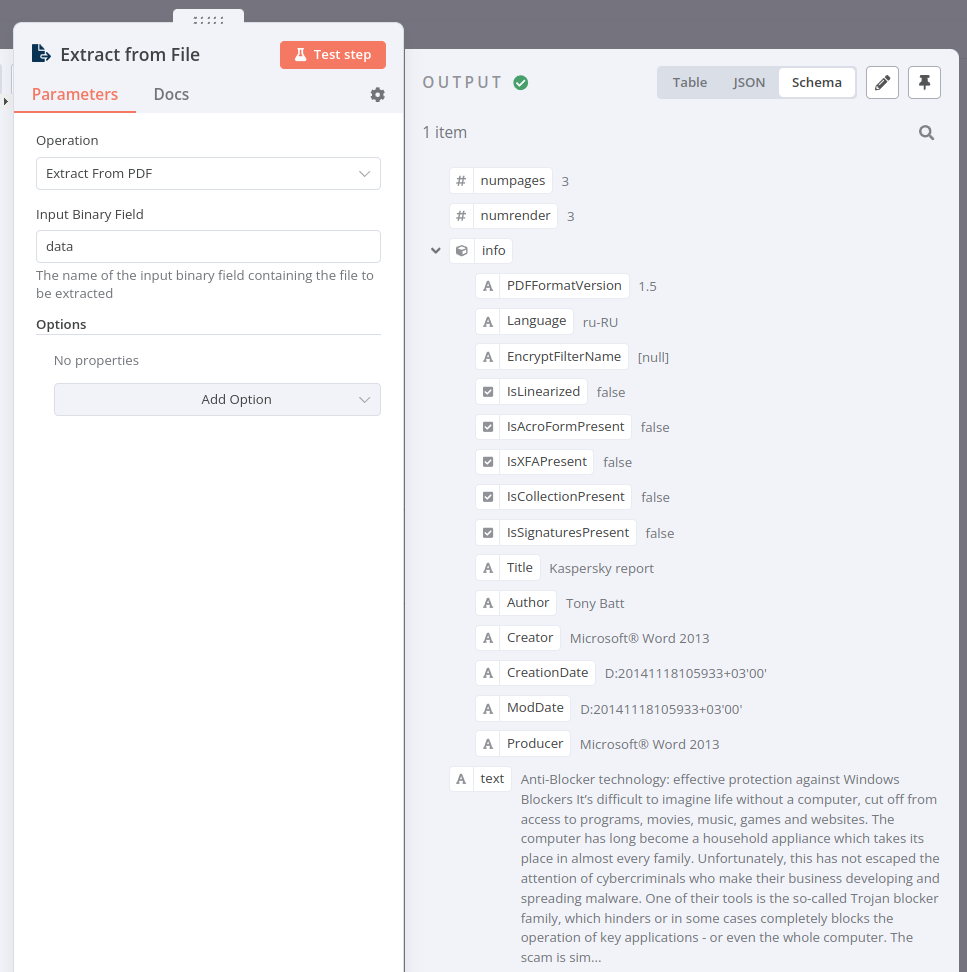
Extract From File node
从文件提取节点

要检查节点的配置,您可以复制下面的JSON工作流代码并粘贴到您的编辑器界面中:

 1
 2
 3
 4
 5
 6
 7
 8
 9
10
11
12
13
14
15
16
17
18
19
20
21
22
23
24
25
26
27
28
29
30
31
32
33
34
35
36
37
38
39
40
41
42
43
44
45
46
47
48
49
50
51
52
53
54
55
56
57
58
59
60
61
62
63
64
65
66
67
68
69
{
	"name": "Binary to JSON",
	"nodes": [
		{
		"parameters": {},
		"id": "78639a25-b69a-4b9c-84e0-69e045bed1a3",
		"name": "When clicking \"Execute Workflow\"",
		"type": "n8n-nodes-base.manualTrigger",
		"typeVersion": 1,
		"position": [
			480,
			520
		]
		},
		{
		"parameters": {
			"url": "https://media.kaspersky.com/pdf/Kaspersky_Lab_Whitepaper_Anti_blocker.pdf",
			"options": {}
		},
		"id": "a11310df-1287-4e9a-b993-baa6bd4265a6",
		"name": "HTTP Request",
		"type": "n8n-nodes-base.httpRequest",
		"typeVersion": 4.1,
		"position": [
			700,
			520
		]
		},
		{
		"parameters": {
			"operation": "pdf",
			"options": {}
		},
		"id": "88697b6b-fb02-4c3d-a715-750d60413e9f",
		"name": "Extract From File",
		"type": "n8n-nodes-base.extractFromFile",
		"typeVersion": 1,
		"position": [
			920,
			520
		]
		}
	],
	"pinData": {},
	"connections": {
		"When clicking \"Execute Workflow\"": {
		"main": [
			[
			{
				"node": "HTTP Request",
				"type": "main",
				"index": 0
			}
			]
		]
		},
		"HTTP Request": {
		"main": [
			[
			{
				"node": "Extract From File",
				"type": "main",
				"index": 0
			}
			]
		]
		}
	}
}

二进制练习2#

在我们的第二个二进制练习中,让我们将一些JSON数据转换为二进制:

  1. 向Poetry DB API https://poetrydb.org/random/1发起HTTP请求。
  2. 使用转换为文件节点将返回的JSON数据转换为二进制。
  3. 使用磁盘文件读写节点将新的二进制文件数据写入运行n8n的机器。
  4. 要确认操作是否成功,可以使用Read/Write Files From Disk节点来读取生成的二进制文件。
Show me the solution

本练习的工作流程如下所示:
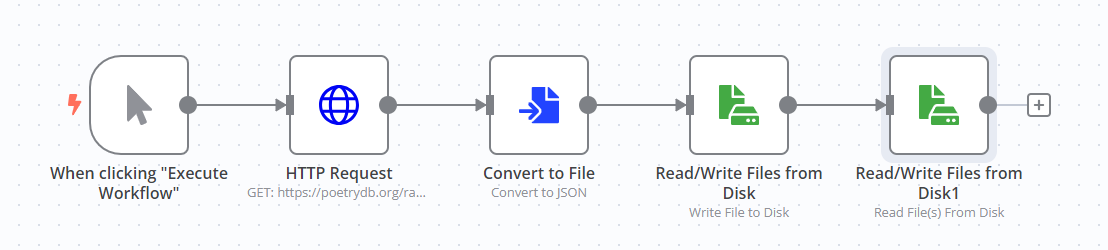
Workflow for moving JSON to binary data
将JSON转换为二进制数据的工作流

要检查节点的配置,您可以复制下面的JSON工作流代码并粘贴到您的编辑器界面中:

  1
  2
  3
  4
  5
  6
  7
  8
  9
 10
 11
 12
 13
 14
 15
 16
 17
 18
 19
 20
 21
 22
 23
 24
 25
 26
 27
 28
 29
 30
 31
 32
 33
 34
 35
 36
 37
 38
 39
 40
 41
 42
 43
 44
 45
 46
 47
 48
 49
 50
 51
 52
 53
 54
 55
 56
 57
 58
 59
 60
 61
 62
 63
 64
 65
 66
 67
 68
 69
 70
 71
 72
 73
 74
 75
 76
 77
 78
 79
 80
 81
 82
 83
 84
 85
 86
 87
 88
 89
 90
 91
 92
 93
 94
 95
 96
 97
 98
 99
100
101
102
103
104
105
106
107
108
109
110
111
112
113
114
115
116
117
118
119
120
{
	"name": "JSON to file and Read-Write",
	"nodes": [
		{
		"parameters": {},
		"id": "78639a25-b69a-4b9c-84e0-69e045bed1a3",
		"name": "When clicking \"Execute Workflow\"",
		"type": "n8n-nodes-base.manualTrigger",
		"typeVersion": 1,
		"position": [
			480,
			520
		]
		},
		{
		"parameters": {
			"url": "https://poetrydb.org/random/1",
			"options": {}
		},
		"id": "a11310df-1287-4e9a-b993-baa6bd4265a6",
		"name": "HTTP Request",
		"type": "n8n-nodes-base.httpRequest",
		"typeVersion": 4.1,
		"position": [
			680,
			520
		]
		},
		{
		"parameters": {
			"operation": "toJson",
			"options": {}
		},
		"id": "06be18f6-f193-48e2-a8d9-35f4779d8324",
		"name": "Convert to File",
		"type": "n8n-nodes-base.convertToFile",
		"typeVersion": 1,
		"position": [
			880,
			520
		]
		},
		{
		"parameters": {
			"operation": "write",
			"fileName": "/tmp/poetrydb.json",
			"options": {}
		},
		"id": "f2048e5d-fa8f-4708-b15a-d07de359f2e5",
		"name": "Read/Write Files from Disk",
		"type": "n8n-nodes-base.readWriteFile",
		"typeVersion": 1,
		"position": [
			1080,
			520
		]
		},
		{
		"parameters": {
			"fileSelector": "={{ $json.fileName }}",
			"options": {}
		},
		"id": "d630906c-09d4-49f4-ba14-416c0f4de1c8",
		"name": "Read/Write Files from Disk1",
		"type": "n8n-nodes-base.readWriteFile",
		"typeVersion": 1,
		"position": [
			1280,
			520
		]
		}
	],
	"pinData": {},
	"connections": {
		"When clicking \"Execute Workflow\"": {
		"main": [
			[
			{
				"node": "HTTP Request",
				"type": "main",
				"index": 0
			}
			]
		]
		},
		"HTTP Request": {
		"main": [
			[
			{
				"node": "Convert to File",
				"type": "main",
				"index": 0
			}
			]
		]
		},
		"Convert to File": {
		"main": [
			[
			{
				"node": "Read/Write Files from Disk",
				"type": "main",
				"index": 0
			}
			]
		]
		},
		"Read/Write Files from Disk": {
		"main": [
			[
			{
				"node": "Read/Write Files from Disk1",
				"type": "main",
				"index": 0
			}
			]
		]
		}
	}
}
优云智算